Guía de usuario
Todo lo que necesitas para operar TopClozer
Un recorrido completo y en lenguaje claro de tu espacio de trabajo: qué hace cada pantalla, cómo encajan las piezas y exactamente qué pulsar para pasar de una cuenta vacía a reuniones agendadas.
Empieza aquí
Qué es TopClozer
TopClozer es una plataforma gestionada de prospección en LinkedIn. Encuentra a las personas adecuadas, les escribe desde cuentas emisoras ya calentadas y lleva la conversación hasta la respuesta, con la IA redactando el texto y tú aprobando todo lo que sale. Tú decides a quién llegar y qué decir; la plataforma se encarga del envío, el seguimiento y los borradores.
Emisores
Las cuentas de LinkedIn desde las que se envía tu prospección. Usa una cuenta gestionada de “embajador” —sin necesidad de un inicio de sesión propio— o conecta la tuya en un proxy dedicado.
Campañas
Las secuencias que se ejecutan en piloto automático: solicitud de conexión → espera → seguimiento → mensaje. Asignas leads y emisores, y luego las activas.
Tareas
Tu punto de control con supervisión humana. Cuando un lead responde, la IA redacta una respuesta y la deja aquí para que la apruebes, reescribas o descartes. Nada se envía solo.
◇ Orientación
La interfaz de un vistazo
La barra lateral izquierda es siempre tu navegación. La barra superior controla el motor y la búsqueda. Los números de abajo explican cada parte.
Al hacer clic en el logo vuelves al sitio web público. Junto a él está el conmutador de tema claro/oscuro.
Ocho elementos = ocho etapas de trabajo. La actual aparece resaltada. La insignia en “Tareas” muestra cuántas respuestas de la IA te están esperando.
“Motor en marcha” con un punto verde significa que tus campañas están trabajando activamente. Haz clic para pausar y reanudar todo a la vez.
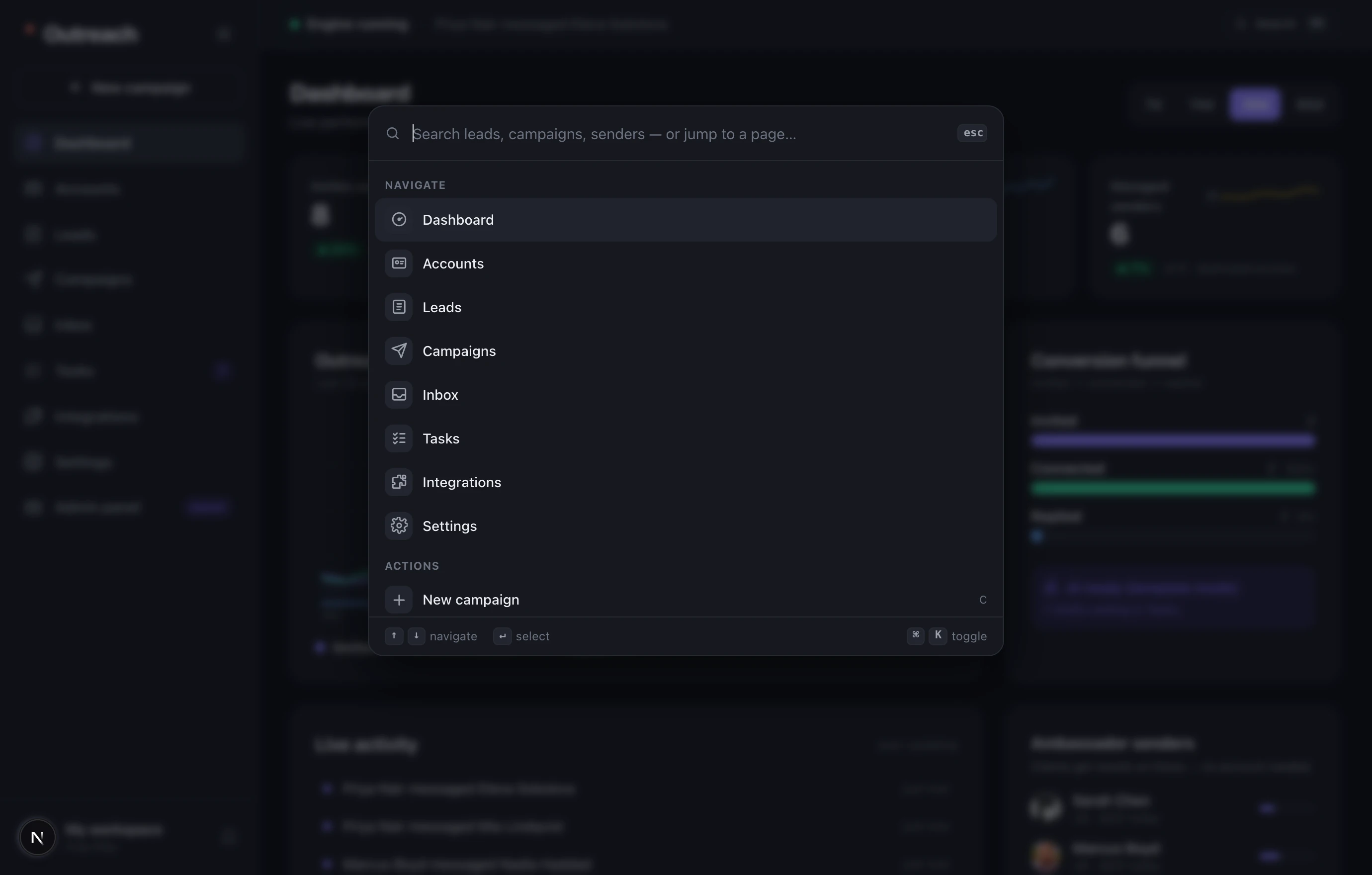
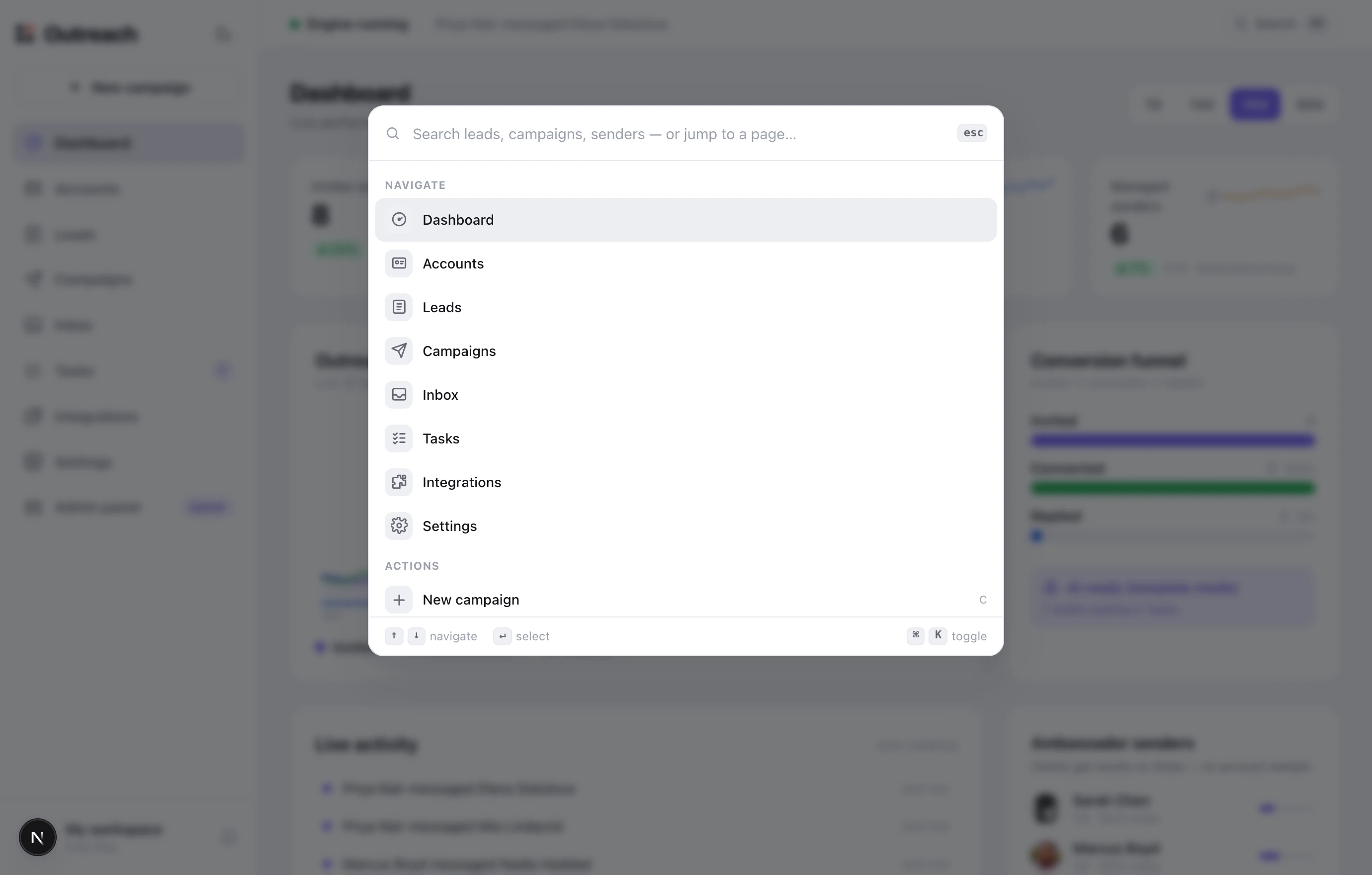
Salta a cualquier pantalla, campaña, lead o conversación desde donde estés, sin abandonar la página en la que te encuentras.
Tu espacio de trabajo, el plan actual, cerrar sesión y restablecer los datos de demostración.
▸ Primera ejecución
Primeros pasos en cinco pasos
El Panel tiene una lista de verificación de “Primeros pasos” que marca cada paso automáticamente a medida que lo completas. Avanza por ellos en orden.
- 1Conecta un emisor — Cuentas
La cuenta desde la que salen tus mensajes. La vía más rápida es una plaza de embajador gestionada: sin necesidad de un inicio de sesión propio.
- 2Importa tus leads — Leads
Las personas a las que llegarás. Importa desde una búsqueda de LinkedIn, un CSV o URLs de perfil pegadas; cada importación se convierte en una lista.
- 3Crea una campaña — Campañas
La secuencia de mensajes. Elige una lista de leads y un emisor, y luego edita el texto de cada paso.
- 4Conecta tus herramientas — Integraciones
Opcional pero recomendado: envía las respuestas a Slack y sincroniza los leads con tu CRM para que nada viva solo dentro de TopClozer.
- 5Enciende el motor — barra superior
El punto verde de “Motor en marcha” significa que la prospección ha comenzado. A partir de aquí, revisa Tareas y la Unibox cada día.
1 Panel
Tu centro de mando
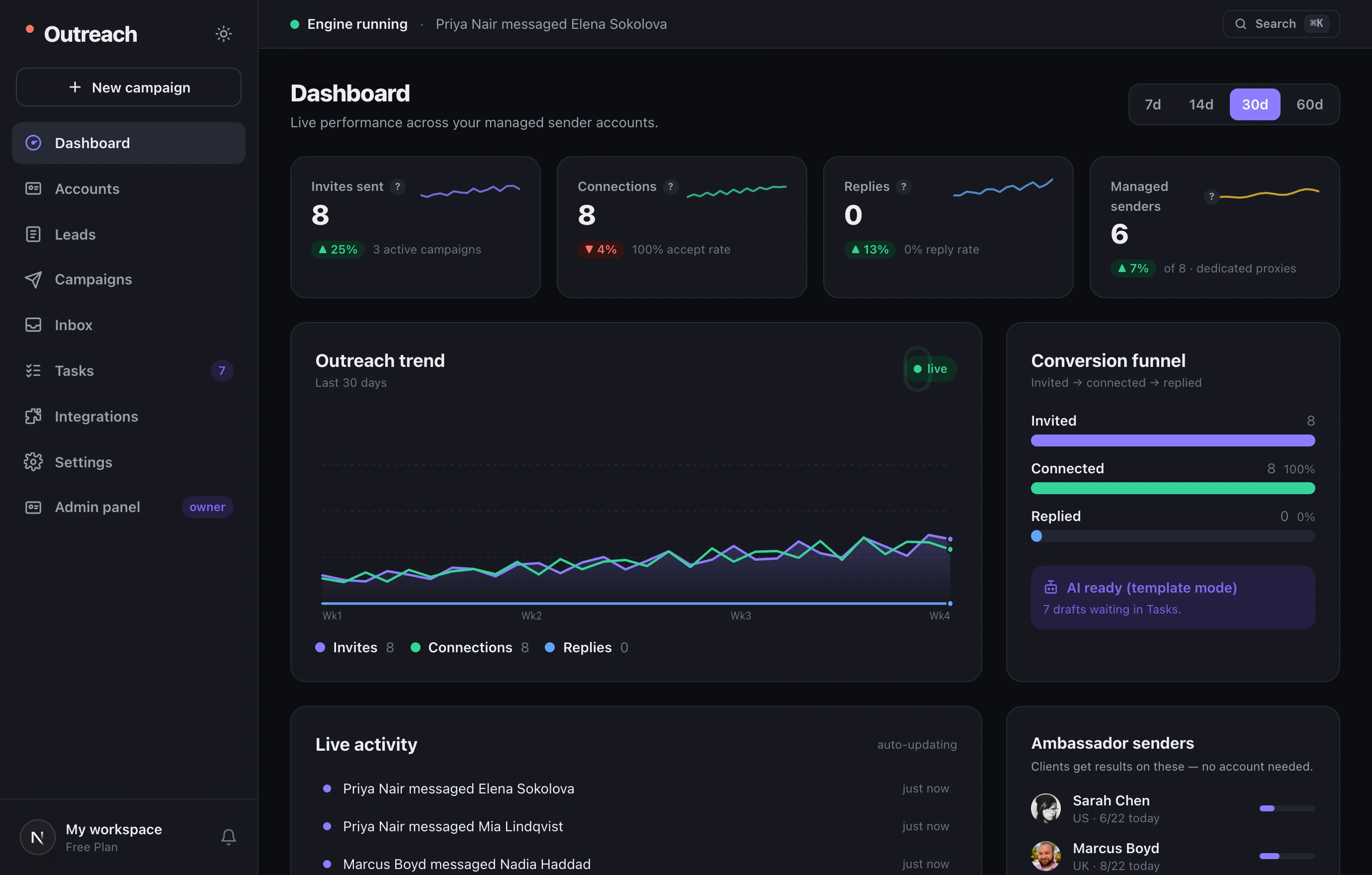
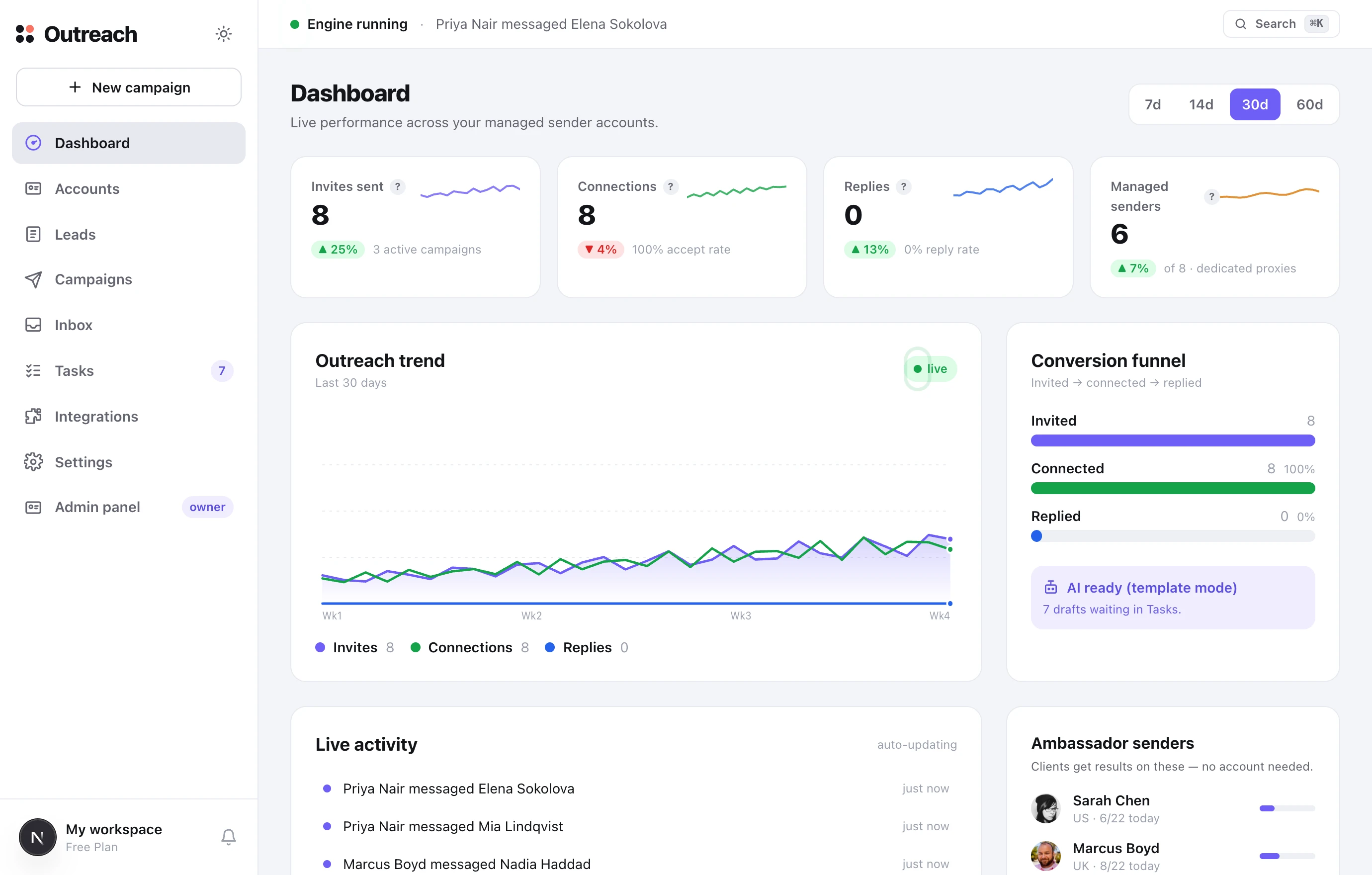
La primera pantalla tras iniciar sesión. Muestra los resultados de todas tus cuentas emisoras a la vez —cuánto se envió, cuántos aceptaron, cuántos respondieron— además de un feed en vivo de lo que ocurre ahora mismo.
Qué es
Un resumen de arriba hacia abajo: primero cuatro cifras destacadas, luego un gráfico de tendencia y un embudo de conversión, y después un feed de actividad en vivo y el estado de los emisores. El conmutador 7d / 14d / 30d / 60d cambia el rango temporal de todo.
Cómo usarlo
- 1Revísalo una vez al día
Vigila que la tasa de aceptación y la tasa de respuesta vayan al alza: son las señales de salud de tu prospección.
- 2Pasa el cursor por los iconos “?”
Cada métrica tiene una descripción emergente que explica qué significa y qué rango se considera saludable.
- 3Sigue los borradores hasta Tareas
El panel bajo el embudo enlaza directamente con Tareas siempre que la IA tenga respuestas esperando revisión.
2 Cuentas
Quién hace el envío
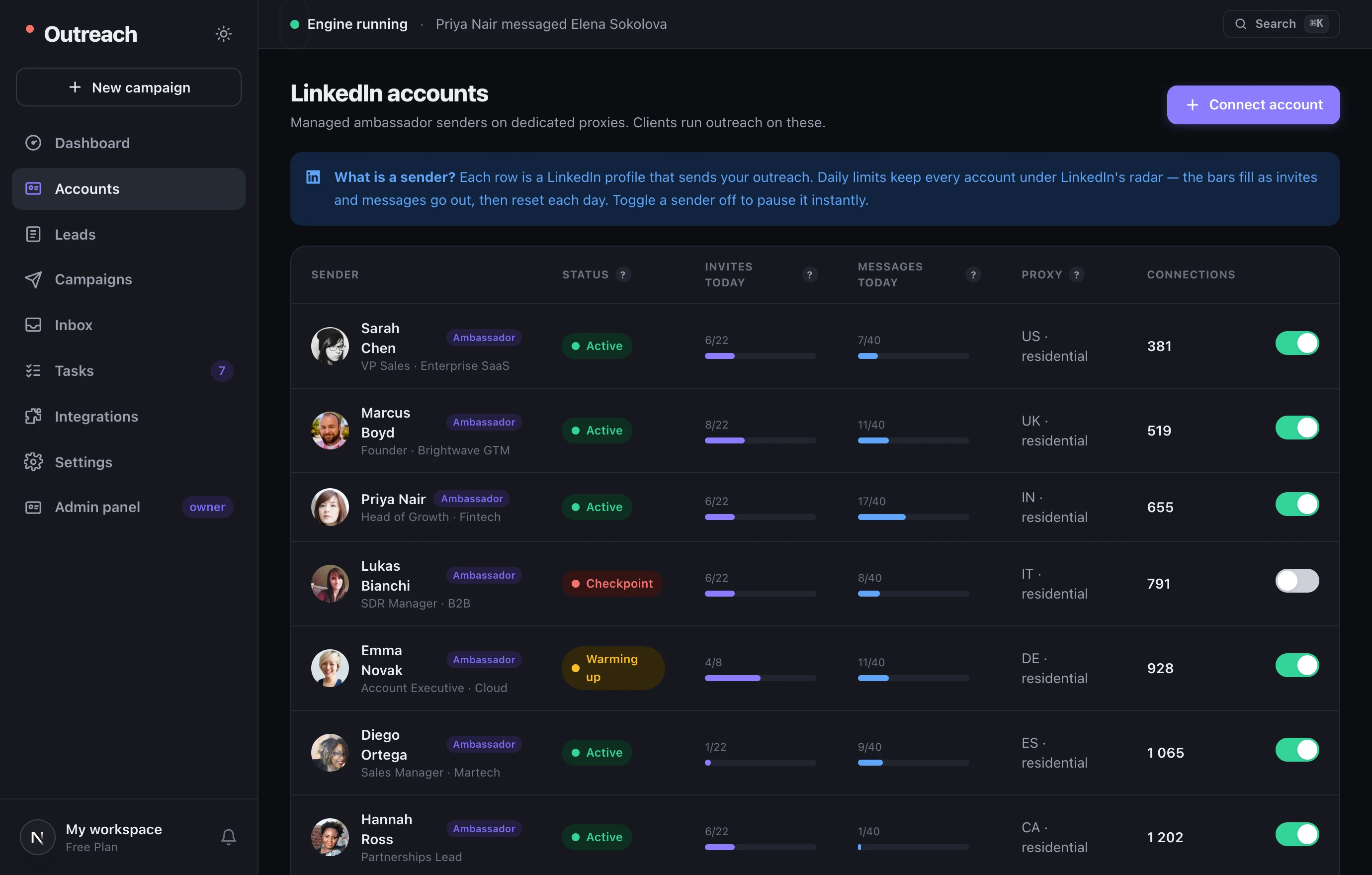
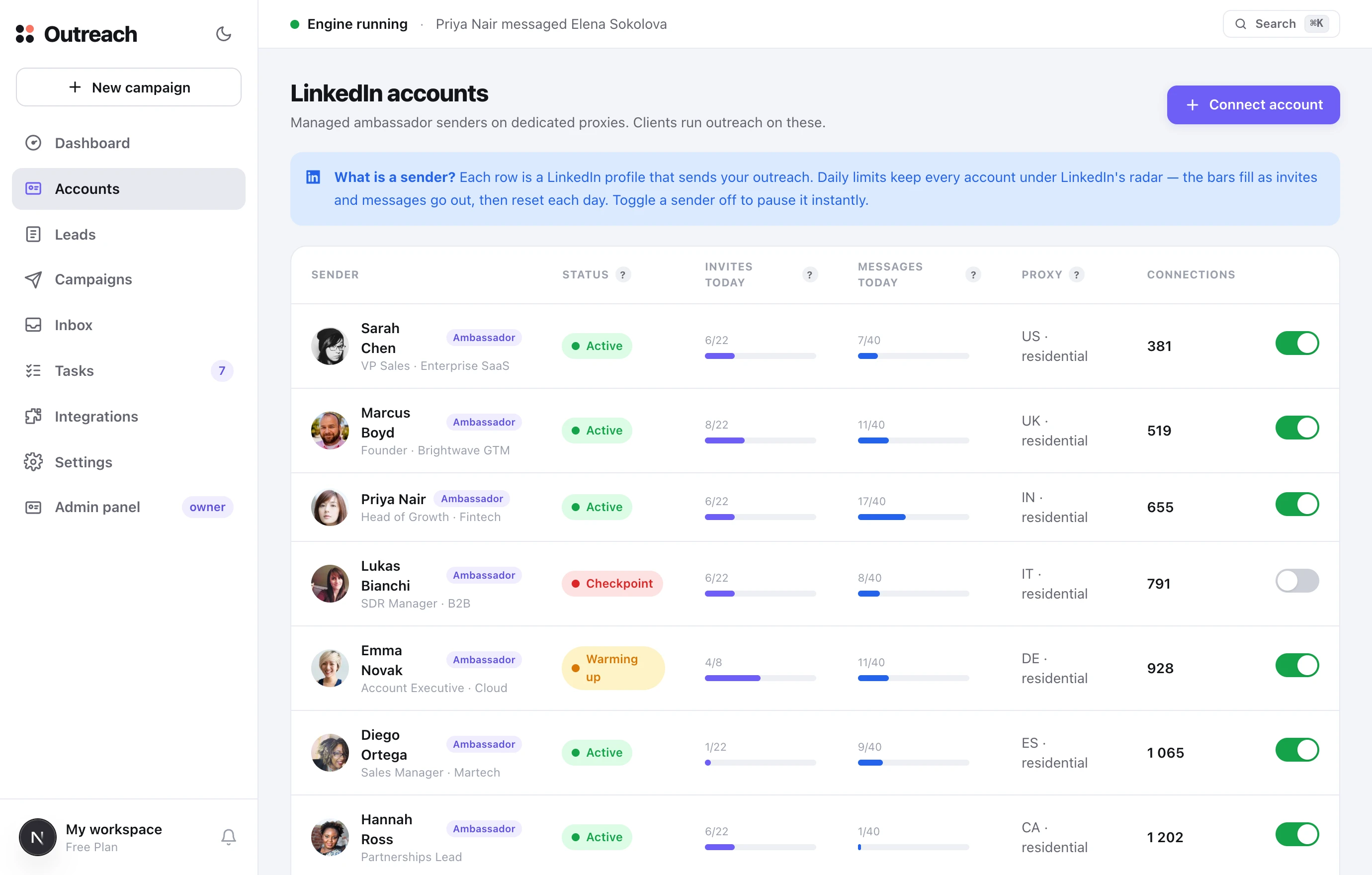
Cada fila es un perfil de LinkedIn (un “emisor”) desde el que se envía tu prospección. Los límites diarios mantienen cada cuenta fuera del radar de LinkedIn, y un conmutador pausa cualquier emisor al instante.
Qué es
Estados: Activo — enviando ahora; Calentando — una cuenta nueva subiendo el ritmo poco a poco; Pausado — apagado; Verificación — LinkedIn pidió una comprobación y necesita atención. Las barras muestran cuánto se ha enviado hoy frente a cada tope diario.
Cómo usarlo
- 1Conectar cuenta
Elige una plaza de embajador gestionada, o conecta tu propia cuenta mediante una sesión segura en un proxy dedicado.
- 2Respeta los límites
No lleves los topes al máximo: un ritmo constante y con aspecto humano protege la cuenta.
- 3Pausa con un clic
El conmutador de la derecha detiene un emisor concreto de inmediato, sin afectar a los demás.
3 Leads
A quién llegarás
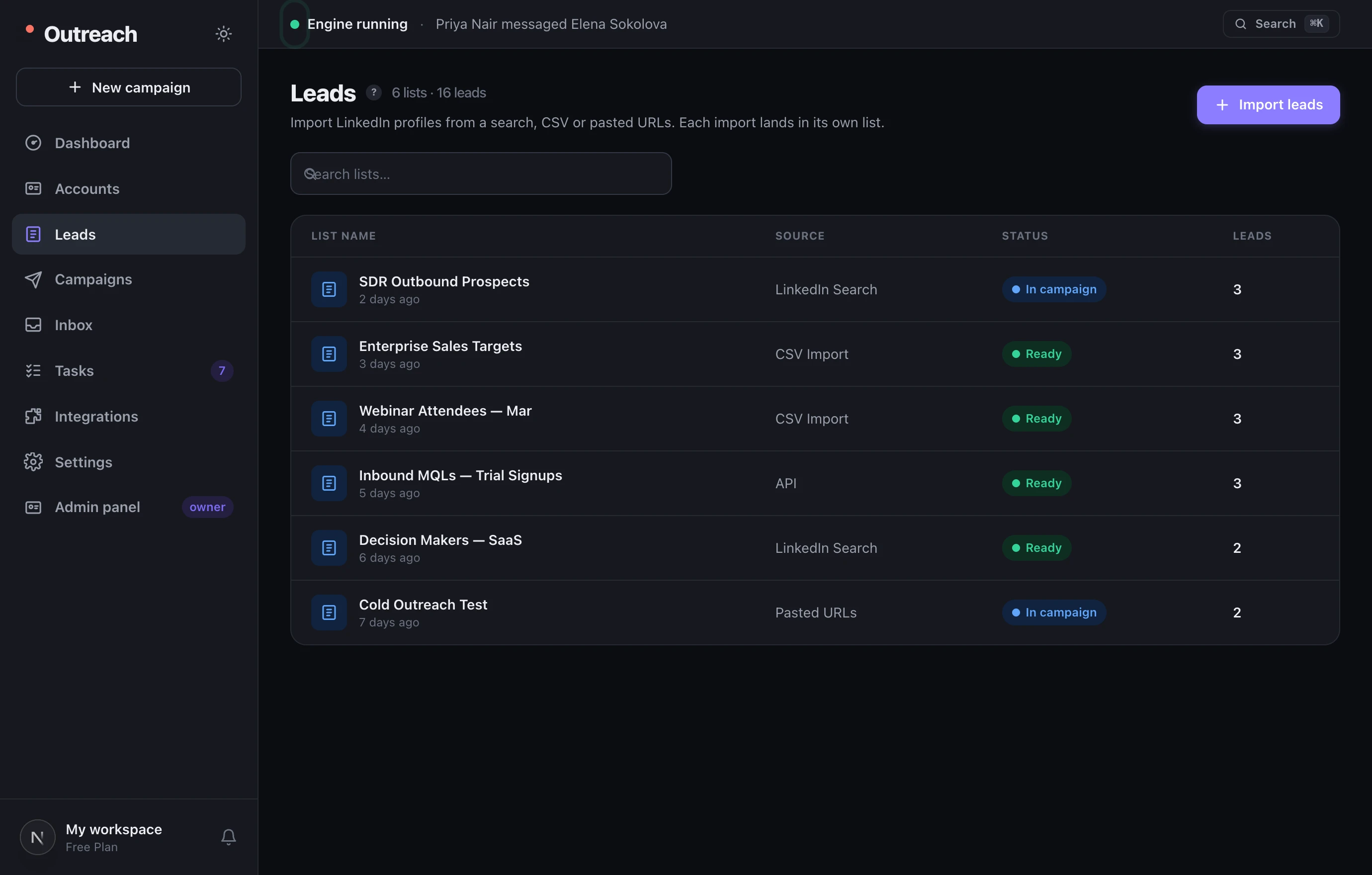
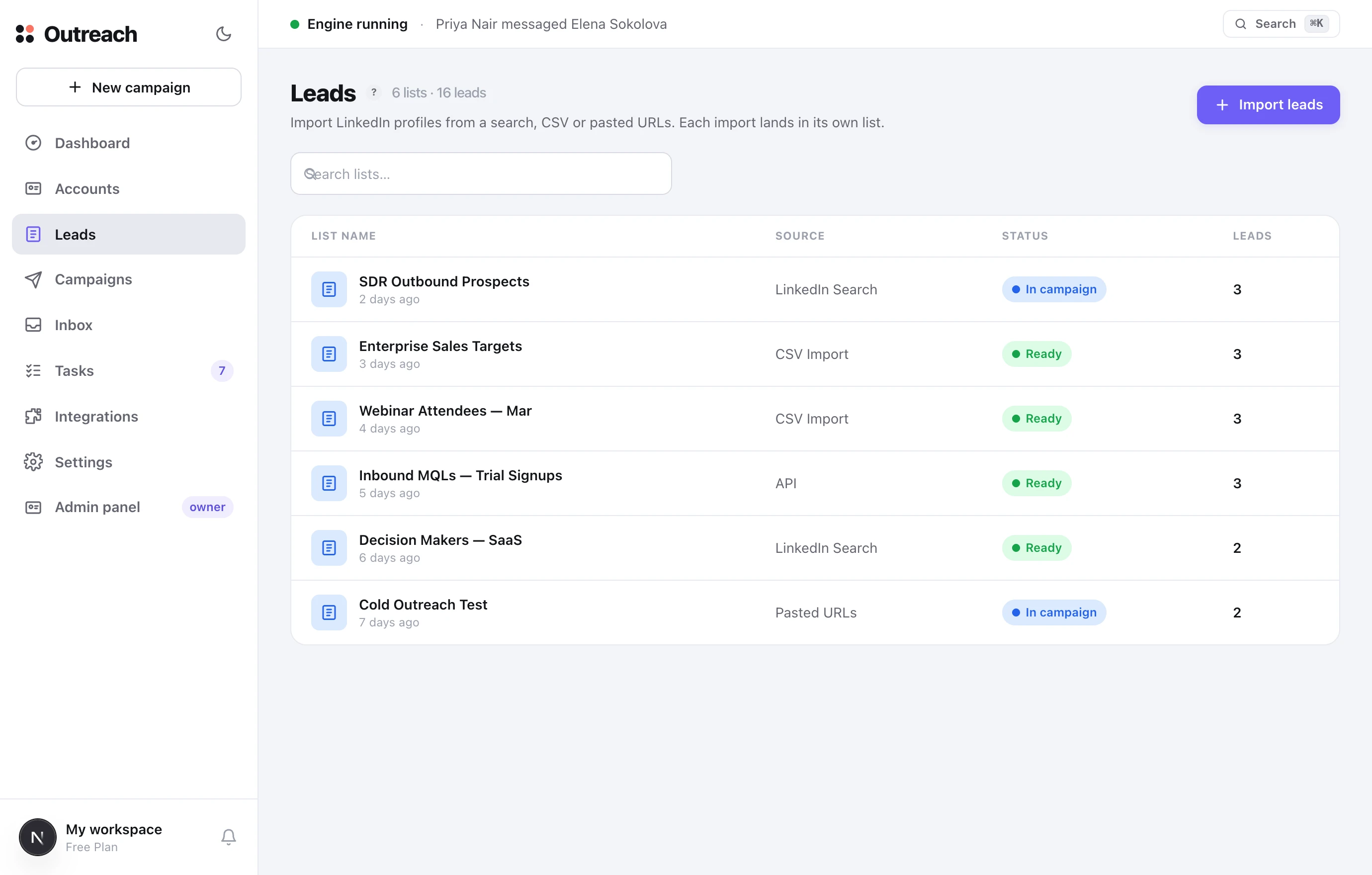
Los leads viven en listas. Cada importación —una búsqueda de LinkedIn, un CSV o URLs pegadas— se convierte en su propia lista a la que luego apuntarás una campaña.
Qué es
El estado de una lista es Lista (utilizable) o En campaña (ya en uso). Dentro de una lista, cada lead tiene su propio estado: sin empezar → invitado → conectado → respondió.
Cómo usarlo
- 1Importar leads
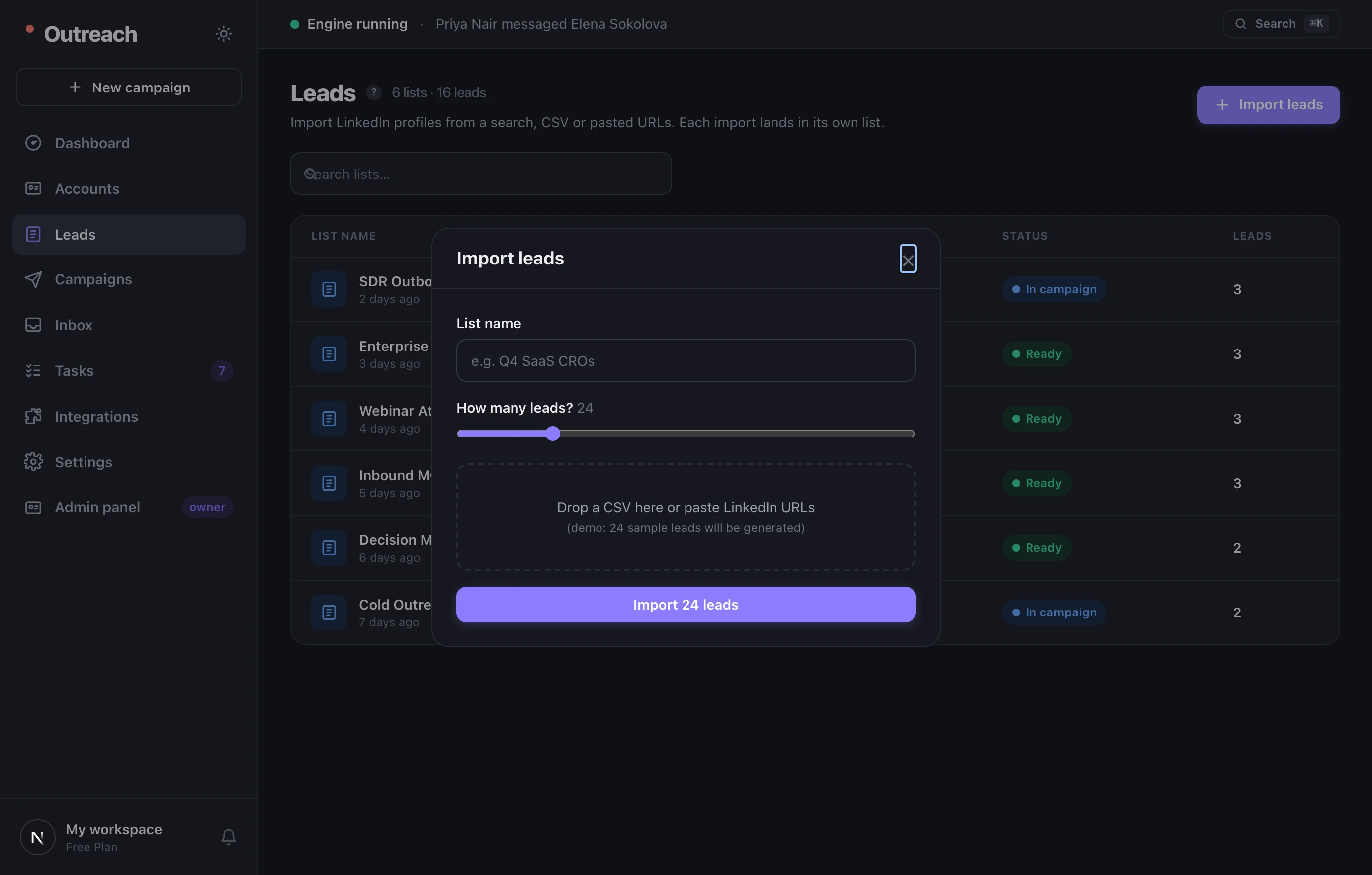
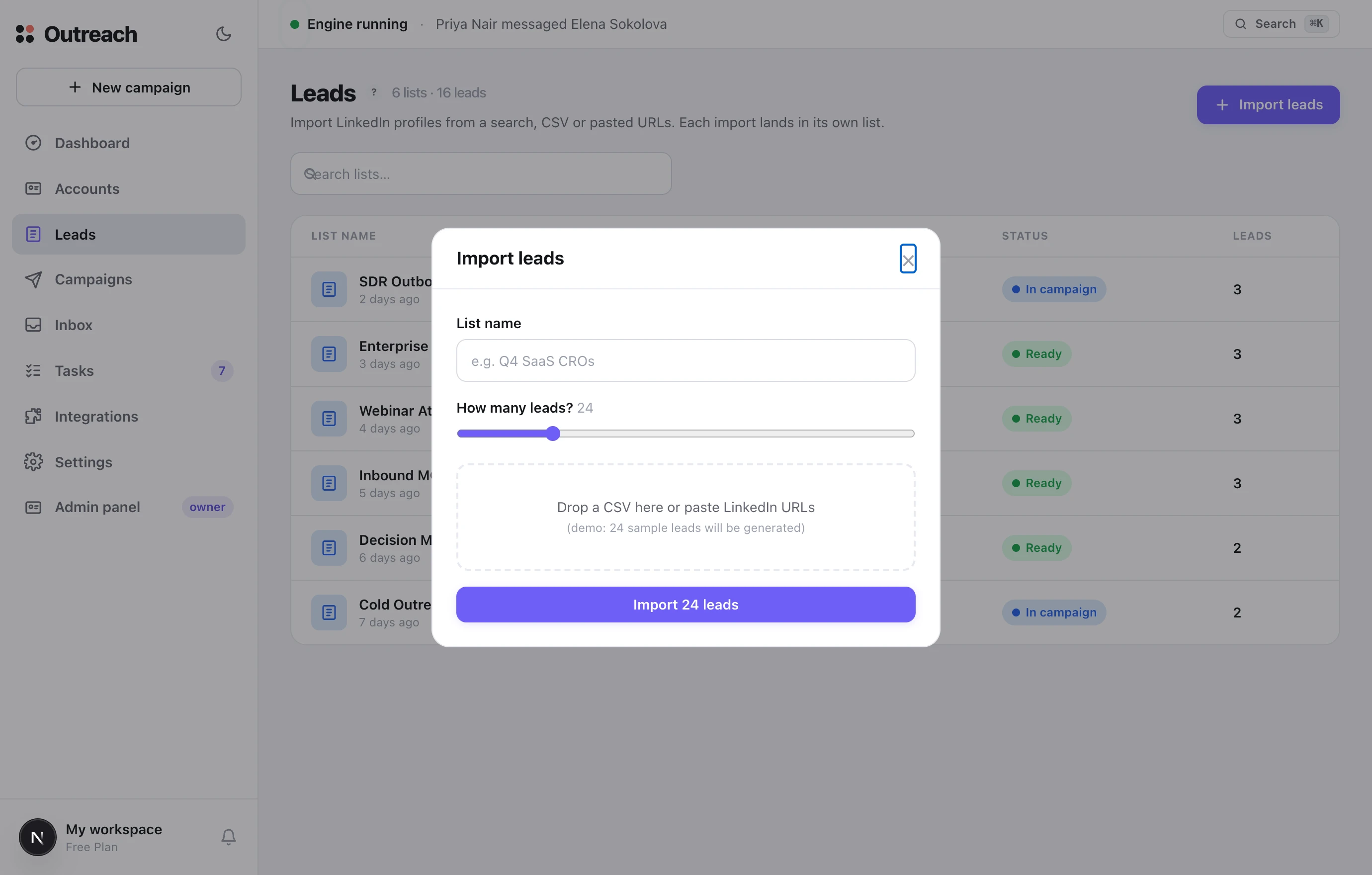
Nombra la lista, elige cuántos leads y luego suelta un CSV o pega URLs de perfil.
- 2Mantén las listas acotadas
Un segmento = una lista = un mensaje. Las listas más ajustadas hacen que tu texto llegue con más precisión.
- 3Revisa antes de lanzar
Abre una lista, filtra por estado y confirma que son las personas correctas antes de que una campaña la use.
4 Campañas
Qué decir, y en qué orden
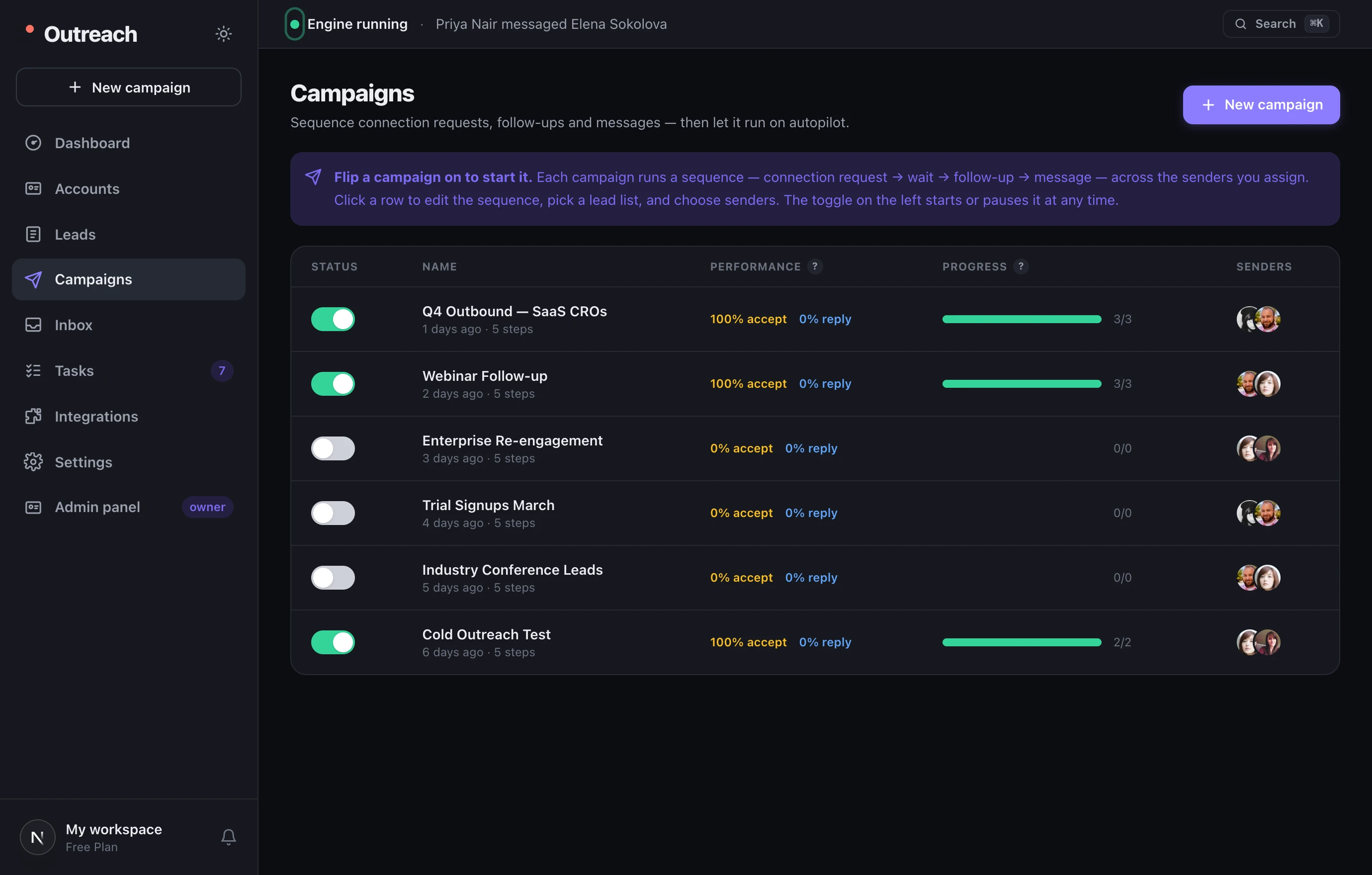
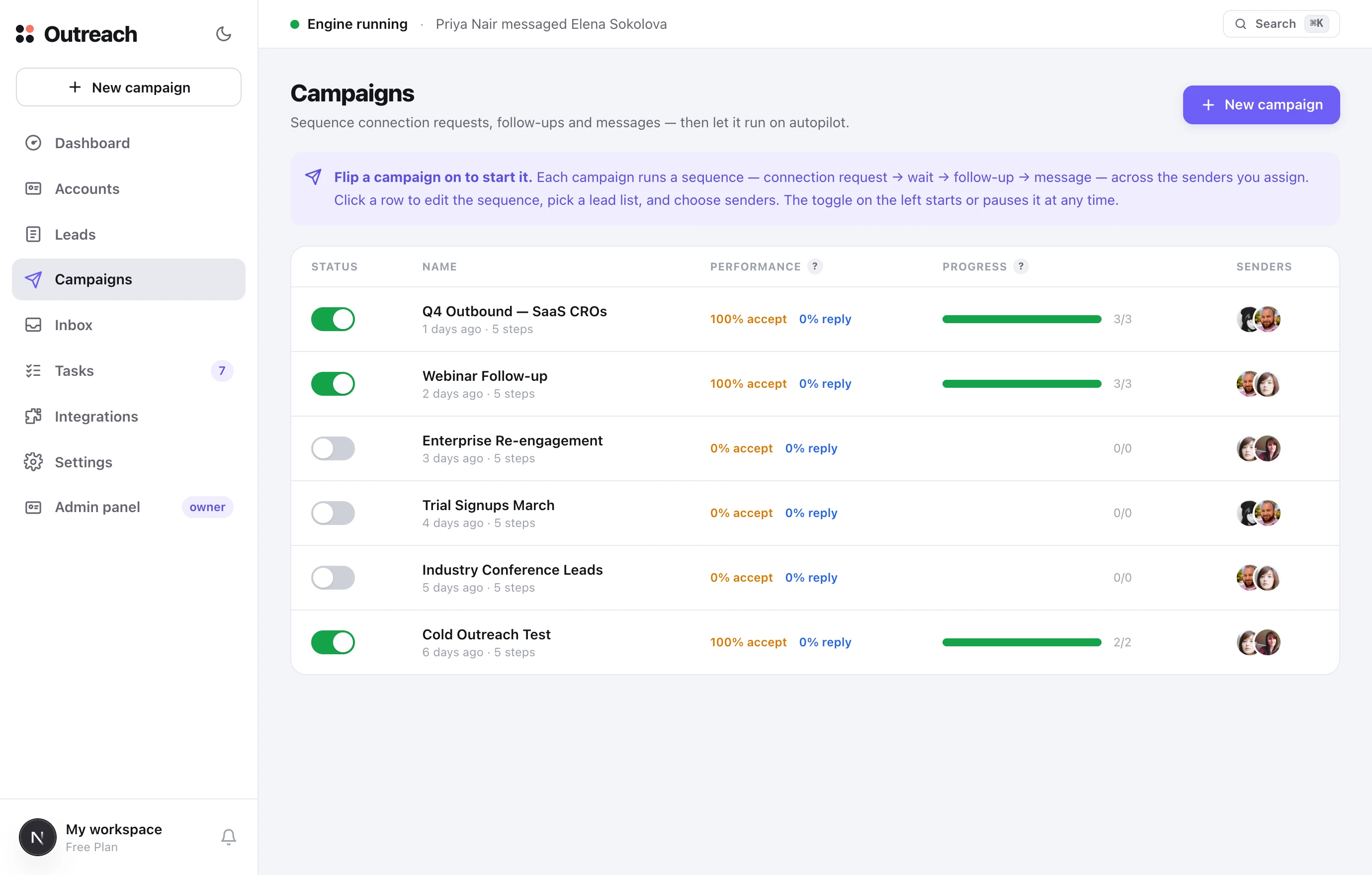
El corazón del sistema. Una campaña es una secuencia —solicitud de conexión → espera → seguimiento → mensaje— que se ejecuta en piloto automático a través de los emisores que asignes. El conmutador de la izquierda la inicia y la detiene en cualquier momento.
Qué es
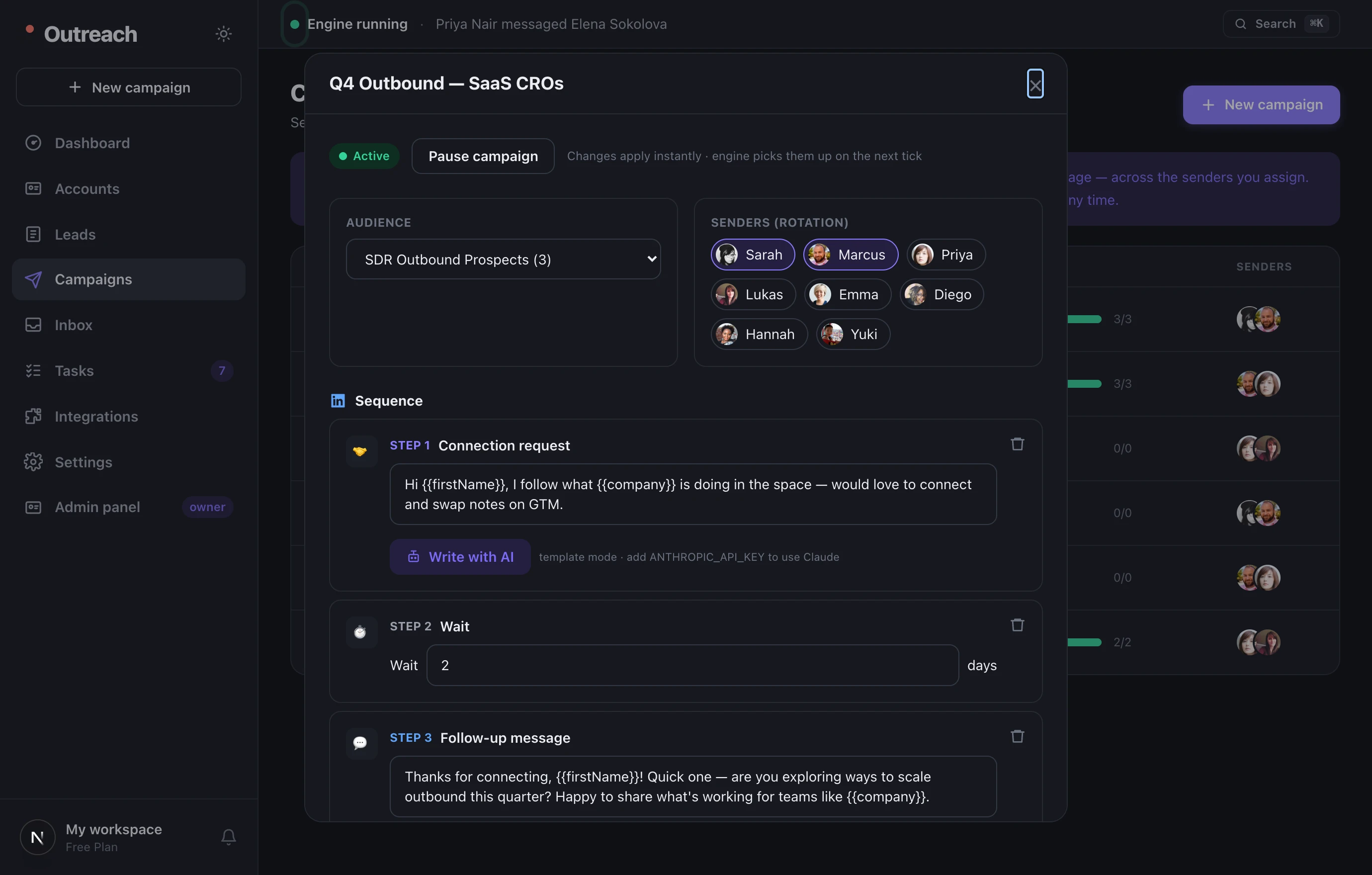
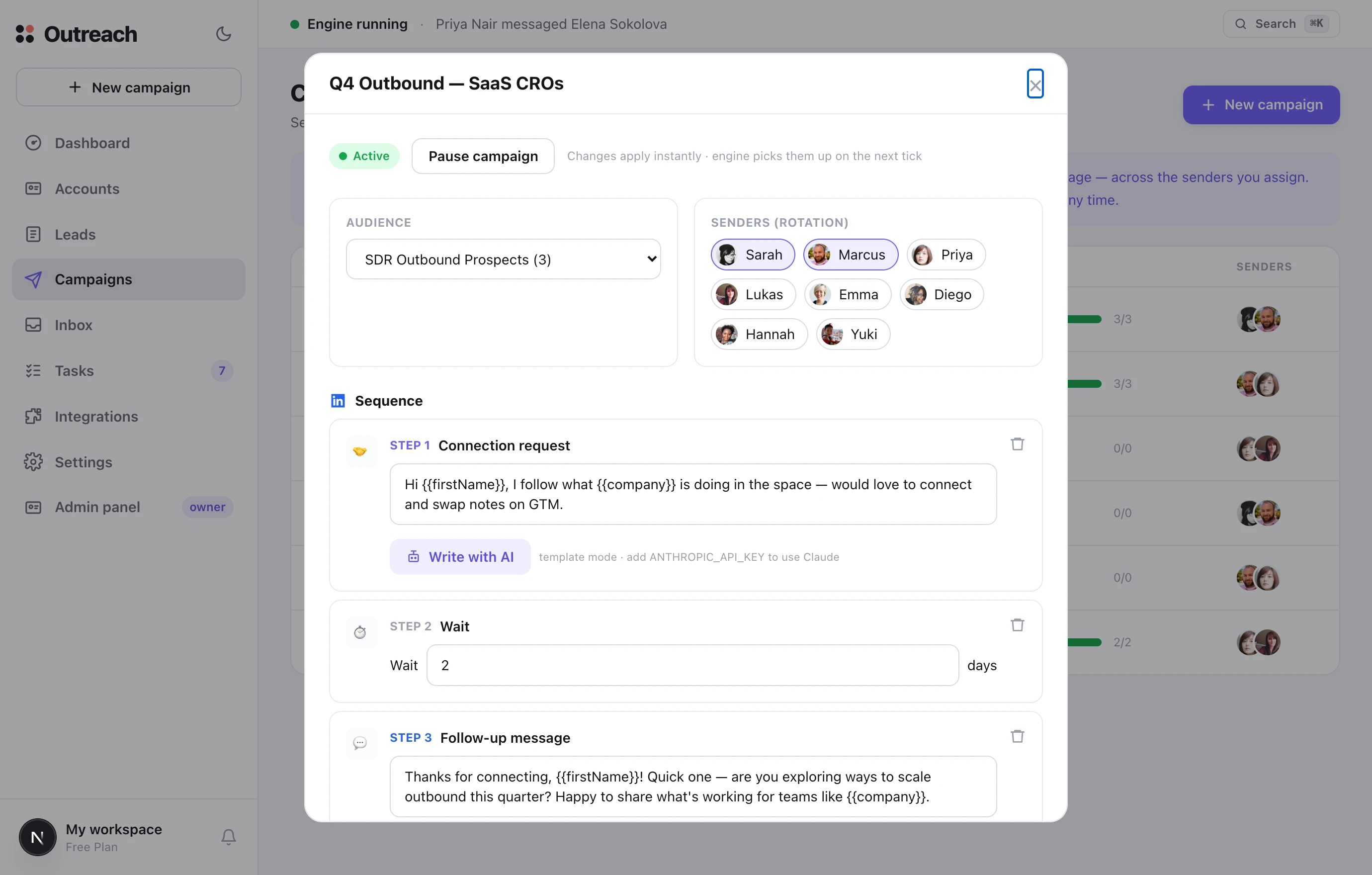
La tasa de aceptación es la proporción de invitaciones que se convirtieron en conexiones; la tasa de respuesta es la proporción de conexiones que contestaron. Variables como {{firstName}} y {{company}} rellenan los datos de cada lead. Una campaña nueva comienza como borrador con una secuencia lista que puedes editar.
Cómo usarlo
- 1Nueva campaña
Ponle un nombre: se crea como borrador con una secuencia predeterminada de invitación → espera → seguimiento.
- 2Móntala
Abre la fila para elegir una lista de leads, asignar emisores y editar el texto de cada paso.
- 3Actívala
El conmutador inicia la campaña; el mismo conmutador la pausa en un segundo.
5 Unibox
Cada conversación en un solo lugar
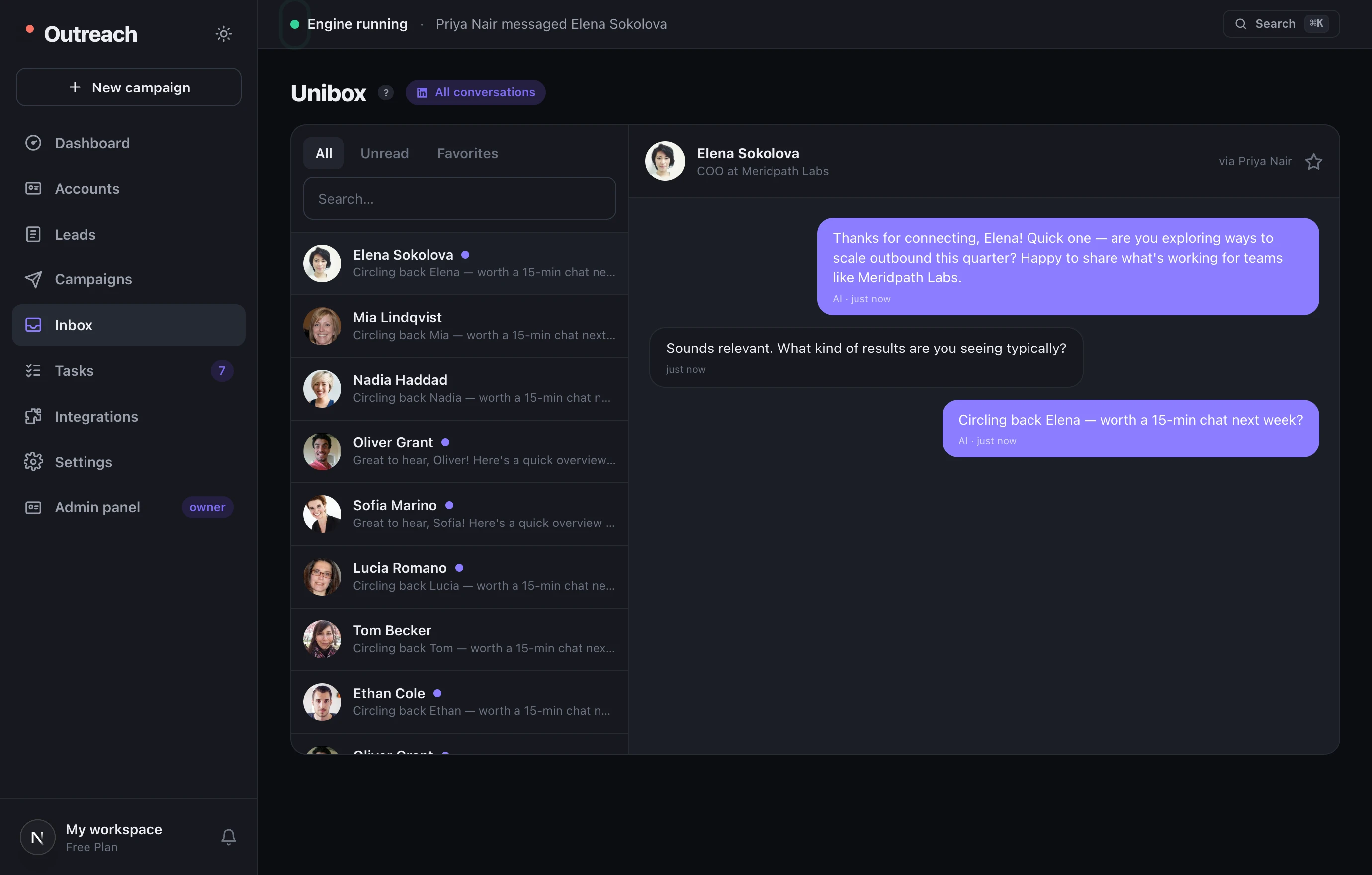
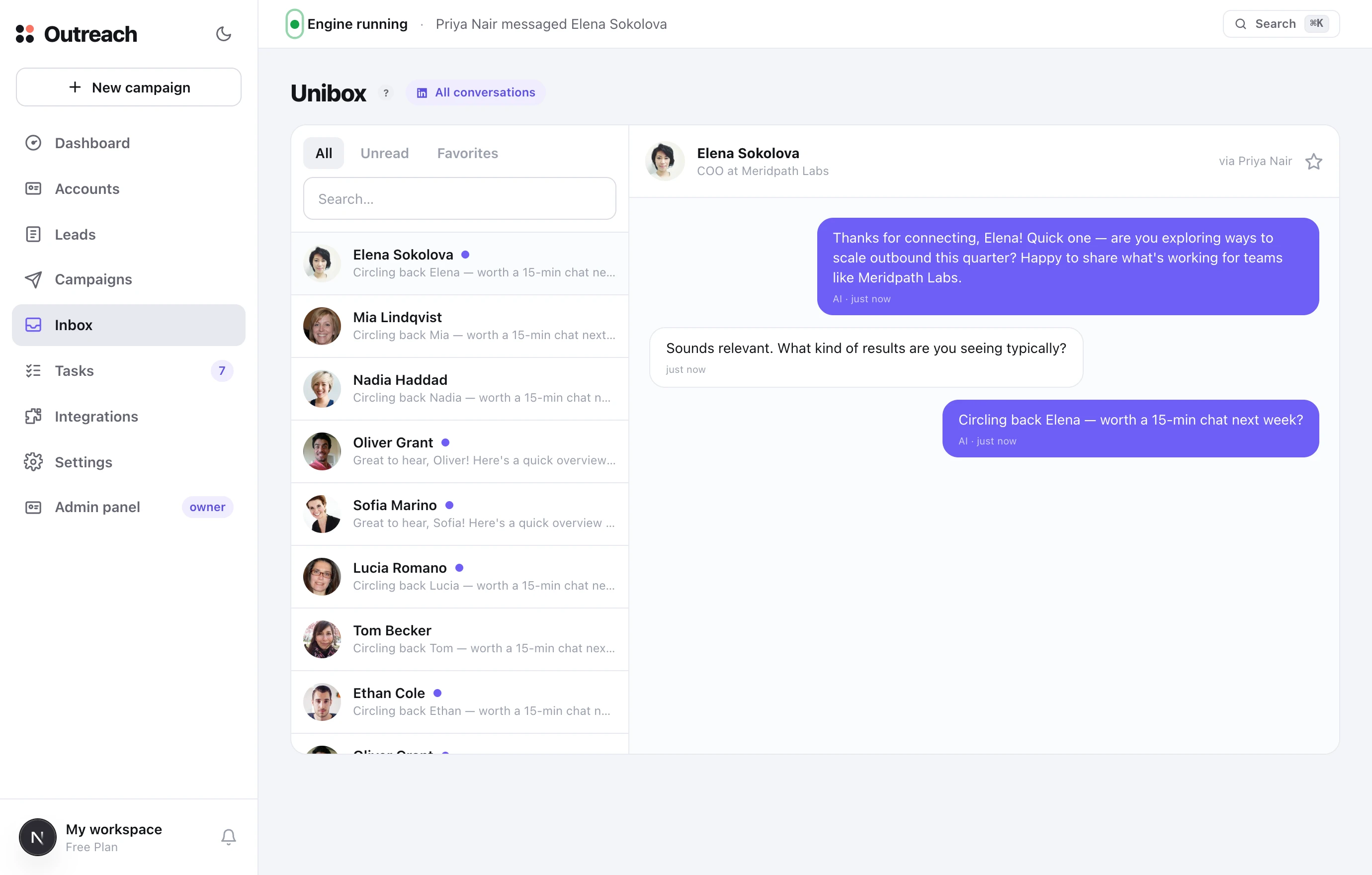
Una única bandeja de entrada para las conversaciones de todos tus emisores. Responde aquí y el mensaje sale desde la cuenta dueña de ese hilo: nunca cambias de perfil.
Qué es
Pestañas de Todos / No leídos / Favoritos y una búsqueda por nombre. Un punto en una conversación significa que está sin leer. La estrella marca los hilos importantes. La cabecera muestra a través de qué emisor circula la conversación.
Cómo usarlo
- 1Filtra por No leídos
Ve de un vistazo dónde alguien está esperando una respuesta.
- 2Responde aquí mismo
Escribe y pulsa Enter: se envía desde la cuenta correcta automáticamente.
- 3Marca con estrella los cálidos
Añade a favoritos un hilo prometedor para encontrarlo fácilmente después.
6 Tareas
Tú apruebas las respuestas de la IA
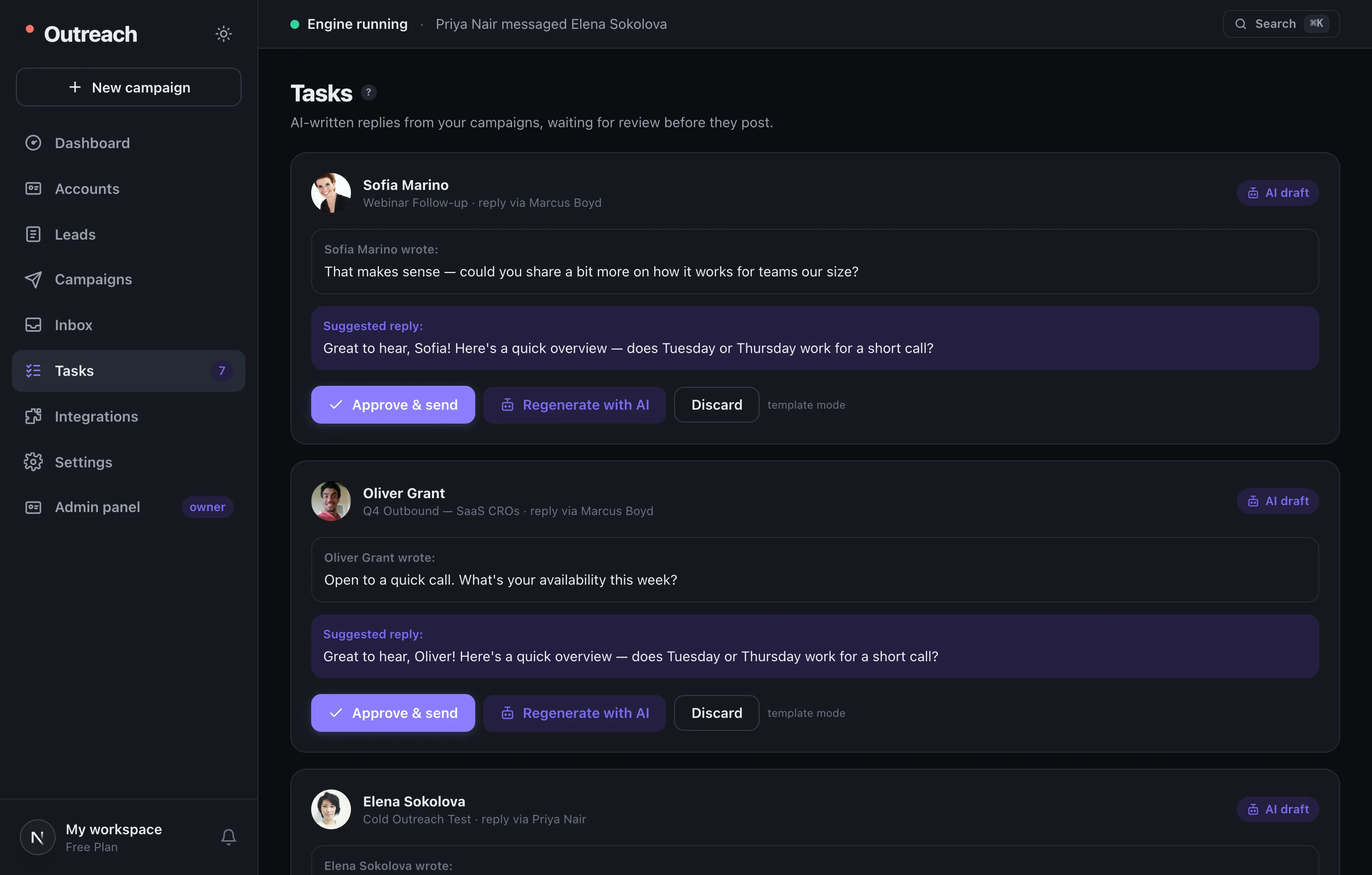
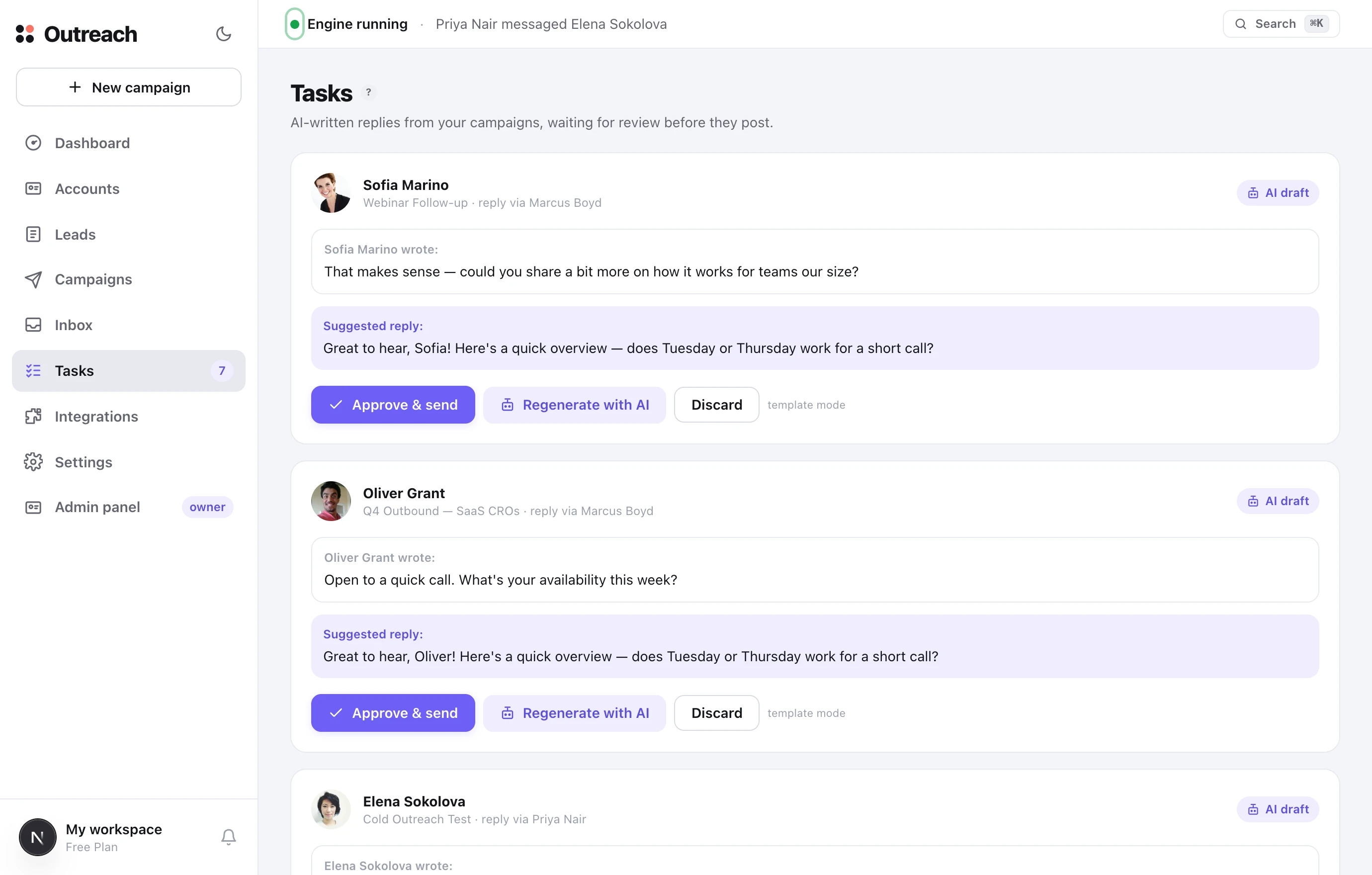
Cuando un lead responde, la IA redacta una respuesta y la coloca aquí. Nada se envía automáticamente: tú apruebas, reescribes o descartas cada una. Este es tu control sobre la calidad.
Qué es
Cada tarjeta muestra lo que escribió el lead y lo que la IA sugiere responder. La insignia en el elemento de menú “Tareas” indica cuántas respuestas están esperando. Una pantalla vacía significa que estás al día.
Cómo usarlo
- 1Aprobar y enviar
El borrador está bien: envíalo con un clic.
- 2Regenerar
¿Tono equivocado? Pide a Claude que escriba una versión nueva.
- 3Descartar
No hace falta responder: retira la tarea.
7 Integraciones
Conecta todo lo que necesites
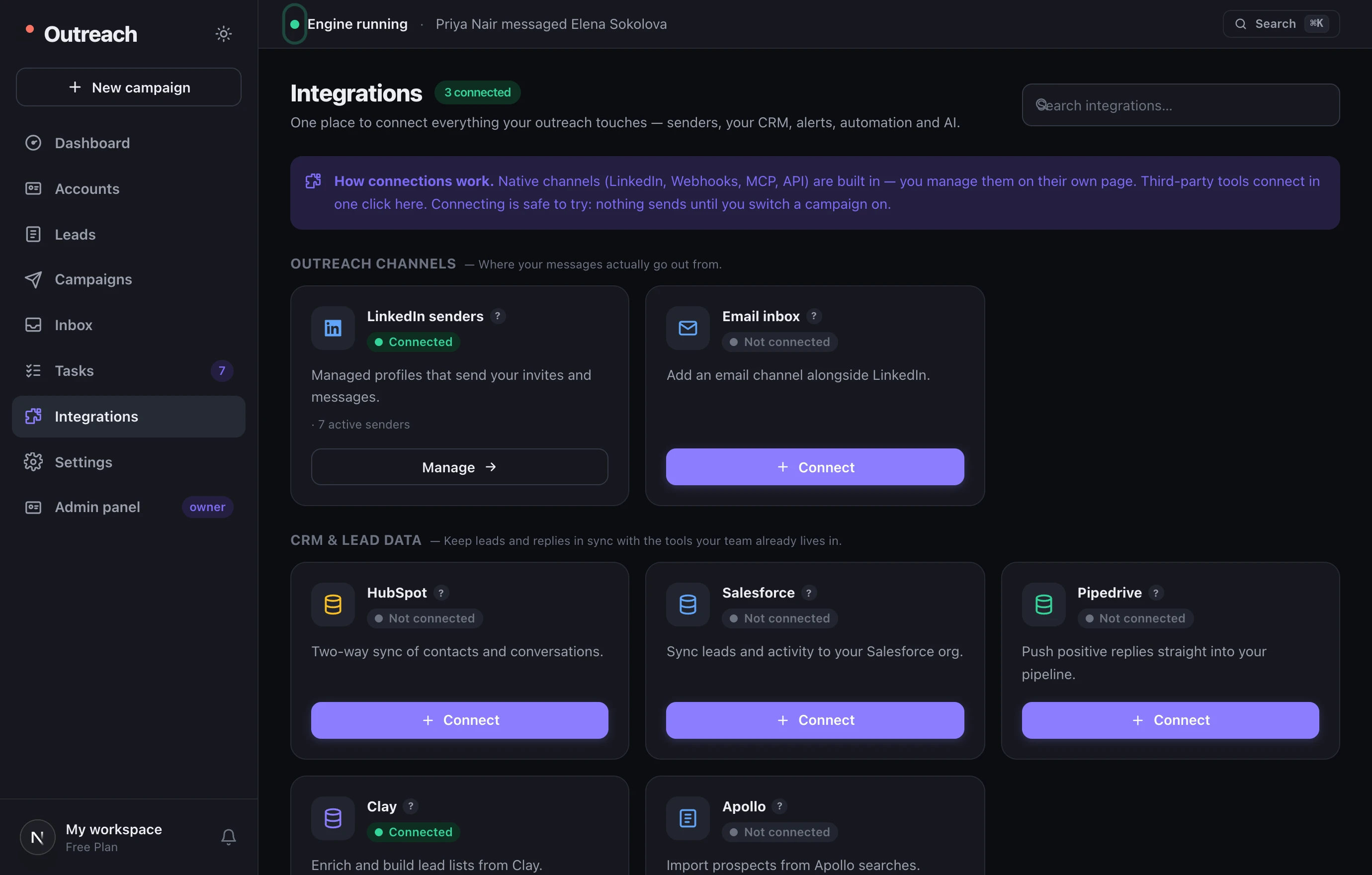
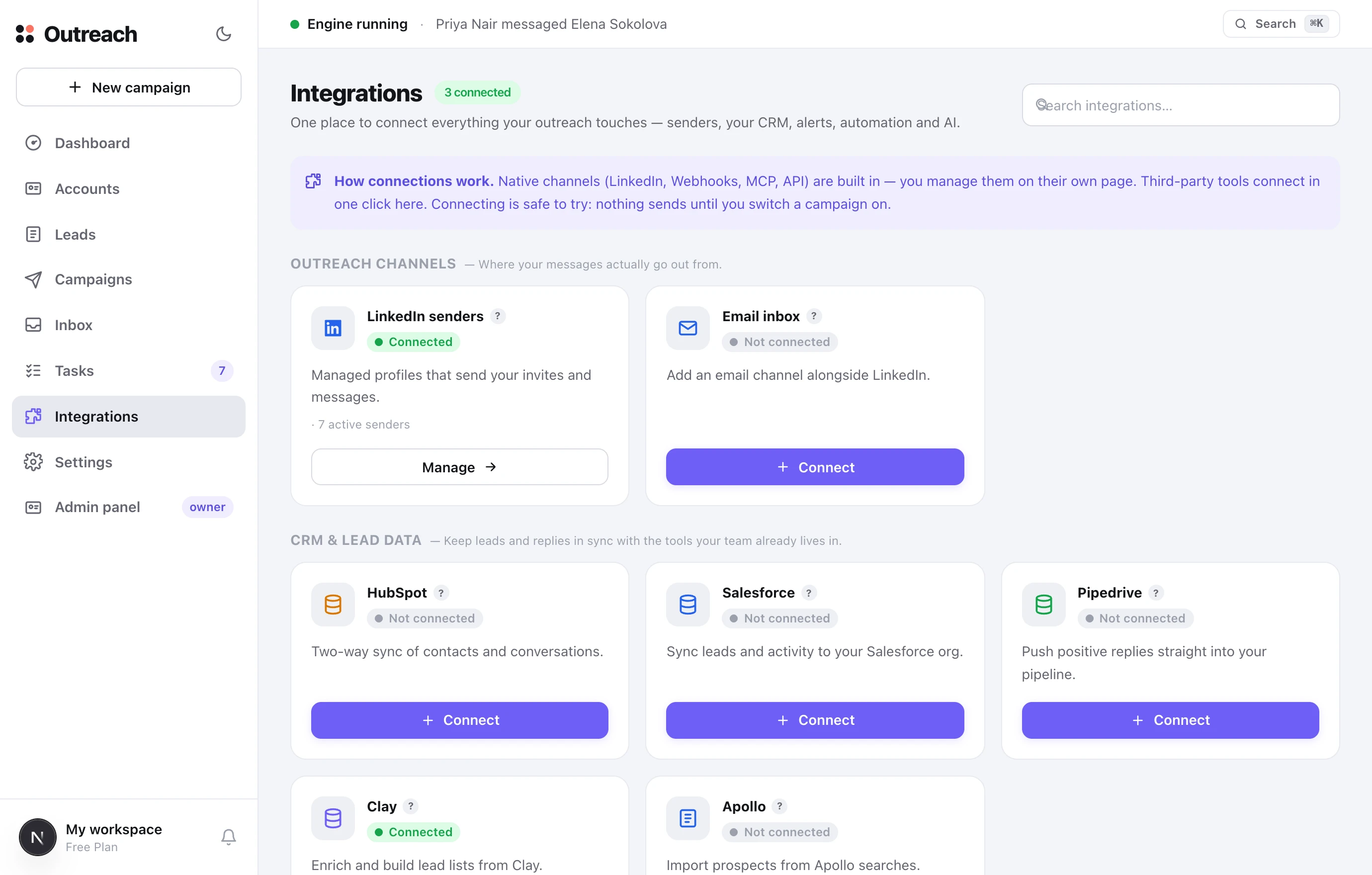
Un único centro para conectar todo lo que toca tu prospección: tu CRM, Slack, herramientas de automatización, email, más el MCP y la REST API integrados. Cada tarjeta explica qué hace la integración y muestra su estado de conexión.
Qué es
Los canales nativos (LinkedIn, Webhooks, MCP, API) vienen integrados: muestran su propio estado y enlazan a donde los gestionas. Las herramientas de terceros (Slack, HubSpot, Salesforce, Pipedrive, Clay, Apollo, Zapier, Make, n8n, email) se conectan con un clic aquí mismo. Conectar es seguro: nada se envía hasta que activas una campaña.
Cómo usarlo
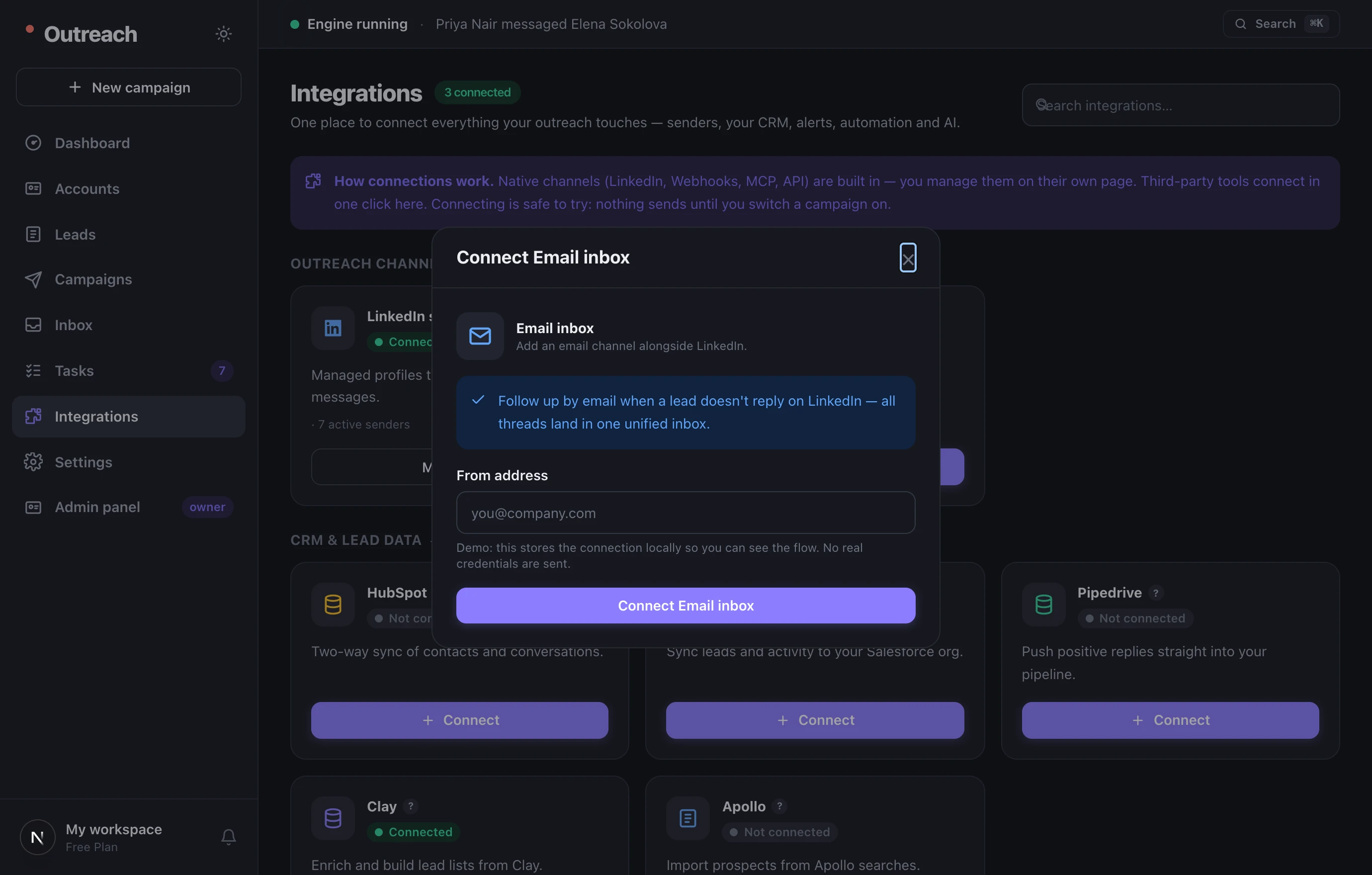
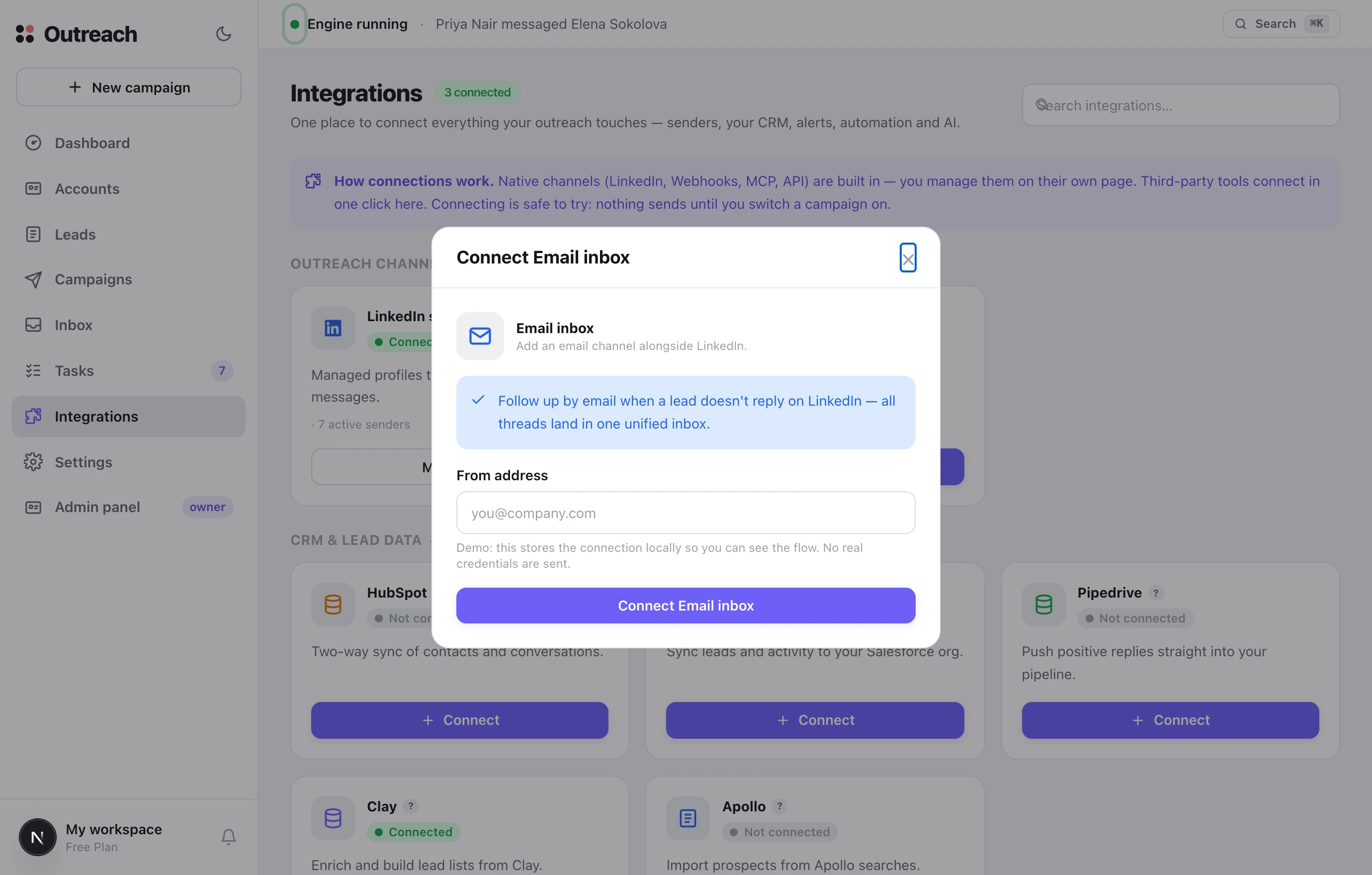
- 1Conectar
Haz clic en una tarjeta, introduce la cuenta o el espacio de trabajo en el diálogo, y listo.
- 2Empieza por Slack
Para captar las respuestas cálidas en el momento en que llegan, en el canal que elijas.
- 3Añade tu CRM
HubSpot, Salesforce o Pipedrive para que las nuevas conexiones y respuestas fluyan a tu pipeline.
8 Ajustes
Cuenta, plan, equipo y herramientas para desarrolladores
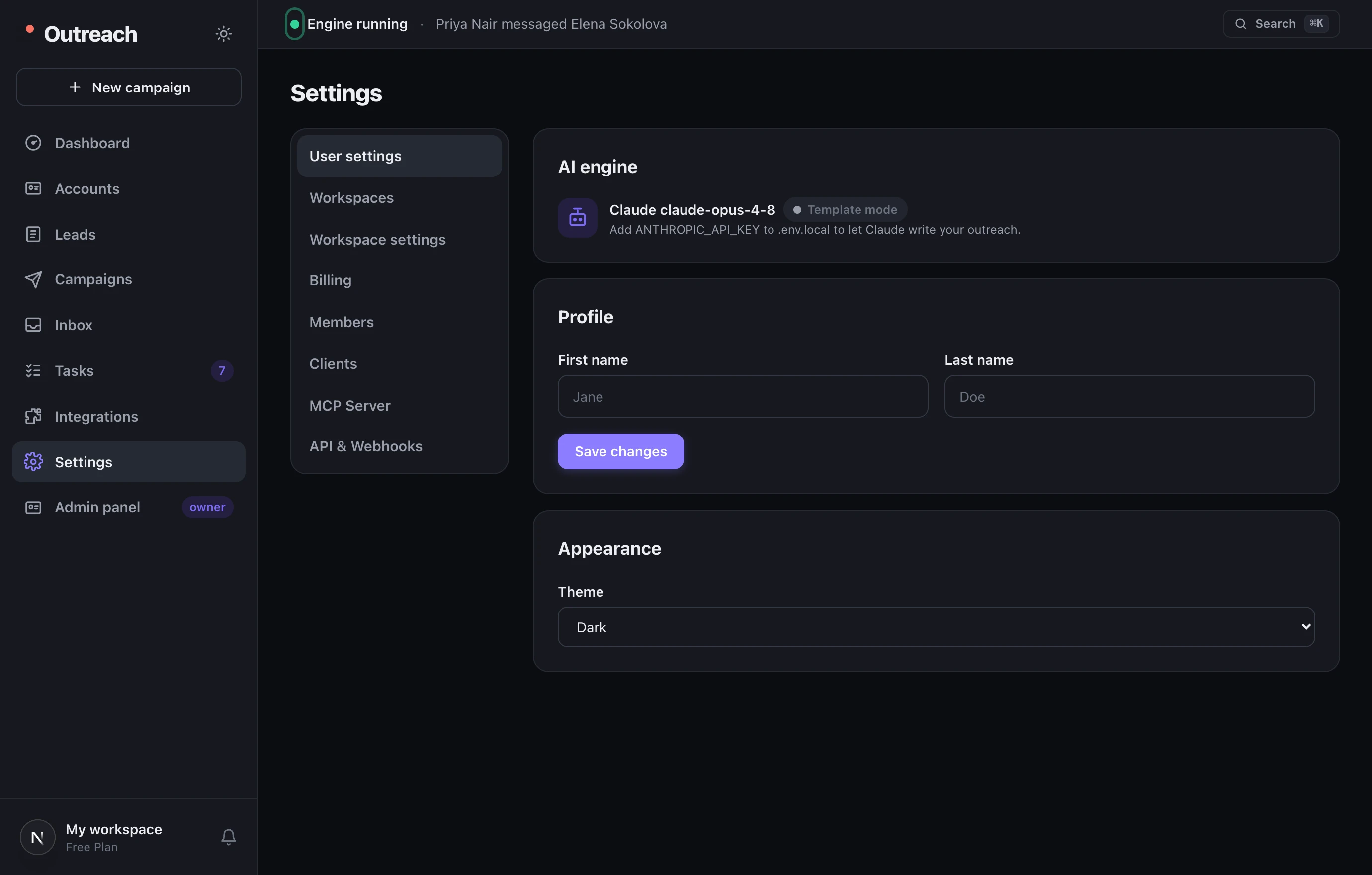
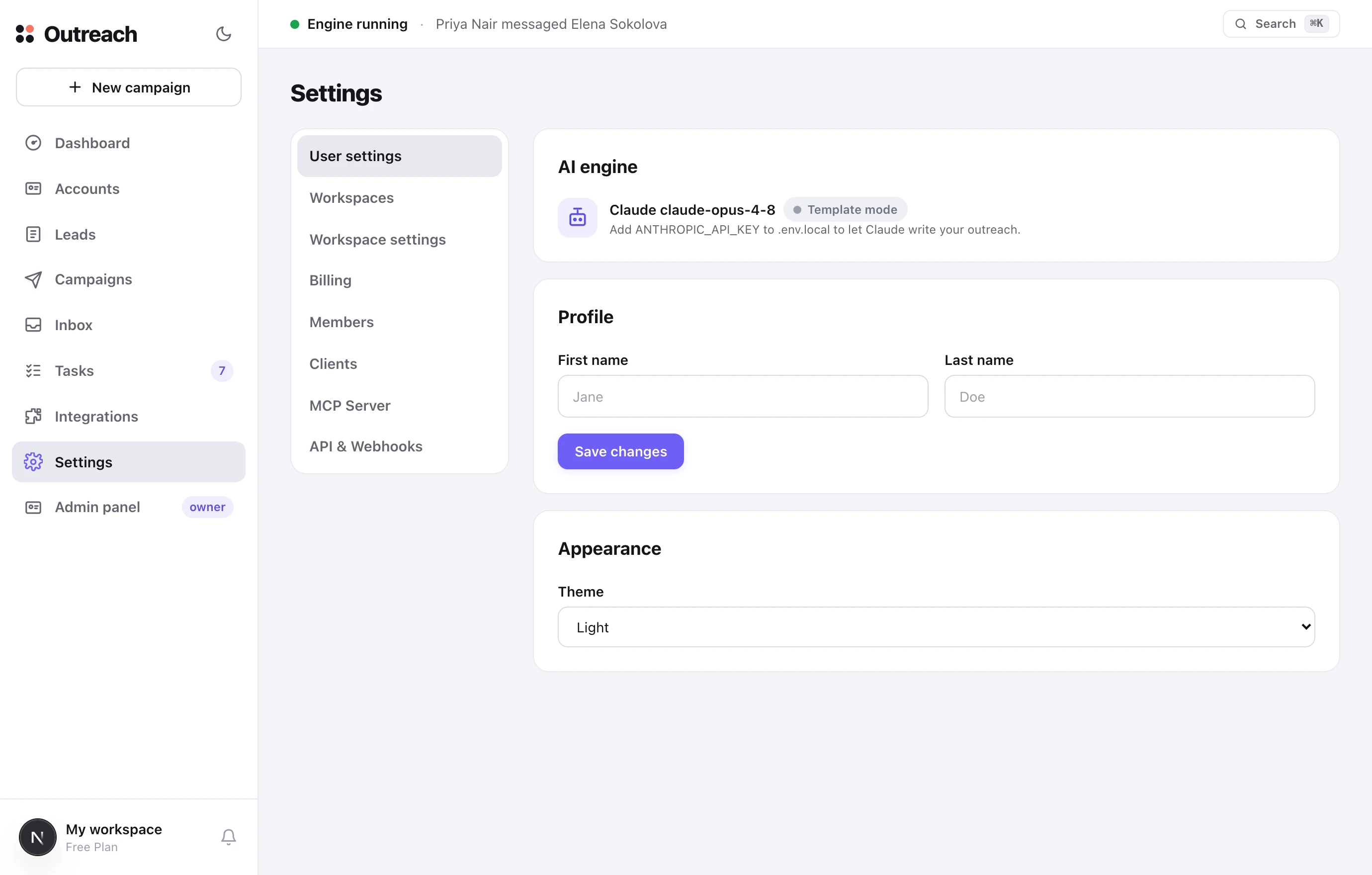
Todo lo que rige tu espacio de trabajo, agrupado en secciones a lo largo del lado izquierdo.
◆ Bajo el capó
Cómo escribe la IA por ti
Una IA real (Claude) impulsa la redacción, pero siempre en tus términos: escribe cuando se lo pides, y tú apruebas todo lo que se envía como respuesta.
◆ Buenas prácticas
Mantenerte a salvo y conseguir respuestas
TopClozer está diseñado para proteger las cuentas, pero unos pocos hábitos mantienen alta la entregabilidad y sanos los resultados.
★ Velocidad
Atajos y consejos del día a día
Pequeñas cosas que hacen más rápido el trabajo diario.
¶ Referencia
Glosario de términos
El vocabulario que verás por toda la app, en un solo lugar.
? Preguntas
Preguntas frecuentes
¿Tengo que conectar mi propia cuenta de LinkedIn?
¿La plataforma enviará algo sin mí?
Mi campaña no envía, ¿por qué?
¿Qué son la tasa de aceptación y la tasa de respuesta?
¿Cómo llegan las respuestas a mi CRM o Slack?
Claude escribe el texto, ¿y si no hay clave?
¿Puedo usar esto para varios clientes?
¿Sigues atascado en algo? Abre las descripciones emergentes “?” en cualquier pantalla, o contacta con el equipo desde la página de Contacto.