User guide
Everything you need to run TopClozer
A complete, plain-language walkthrough of your workspace — what every screen does, how the pieces fit together, and exactly what to click to go from an empty account to booked meetings.
Start here
What TopClozer is
TopClozer is a managed LinkedIn outreach platform. It finds the right people, messages them from warmed-up sender accounts, and carries the conversation to a reply — with AI writing the copy and you approving anything that goes out. You decide who to reach and what to say; the platform does the sending, tracking and drafting.
Senders
The LinkedIn accounts your outreach is sent from. Use a managed “ambassador” account — no login of your own needed — or connect your own on a dedicated proxy.
Campaigns
The sequences that run on autopilot: connection request → wait → follow-up → message. You assign leads and senders, then flip them on.
Tasks
Your human-in-the-loop checkpoint. When a lead replies, AI drafts a response and parks it here for you to approve, rewrite or discard. Nothing sends itself.
◇ Orientation
The interface at a glance
The left sidebar is always your navigation. The top bar controls the engine and search. The numbers below explain each part.
Clicking the logo returns to the public website. Next to it is the light/dark theme toggle.
Three groups: outreach, platform and workspace. The current one is highlighted. The badge on “Tasks” shows how many AI replies are waiting for you.
The state of your workspace, in one line: “Nothing connected” until a LinkedIn account is attached, “Idle” when one is but no campaign is active, and “Engine running” with a green dot when campaigns are actually working. Clicking it stops and resumes this page's live refresh — it does not pause your campaigns; that is done per campaign.
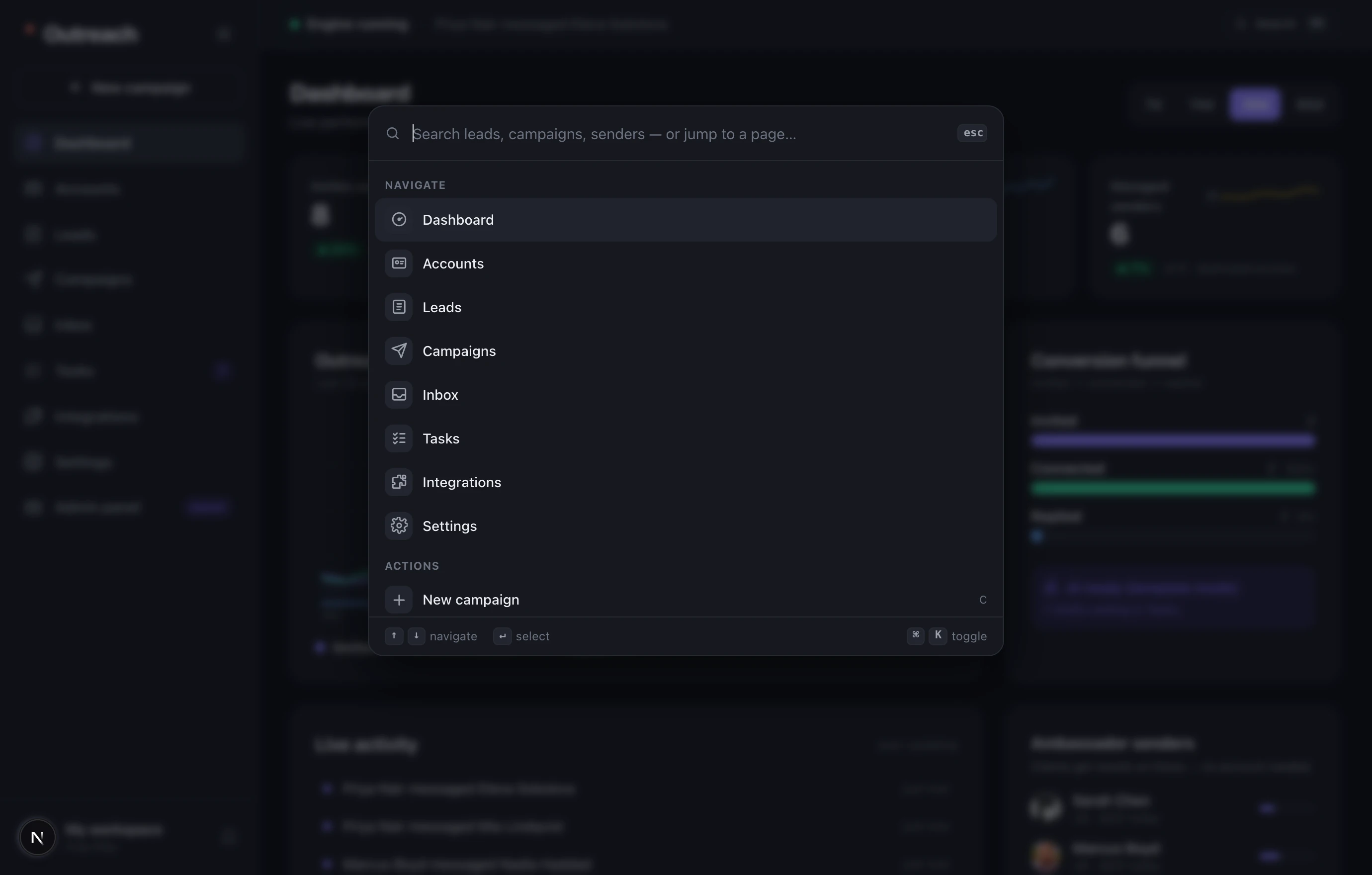
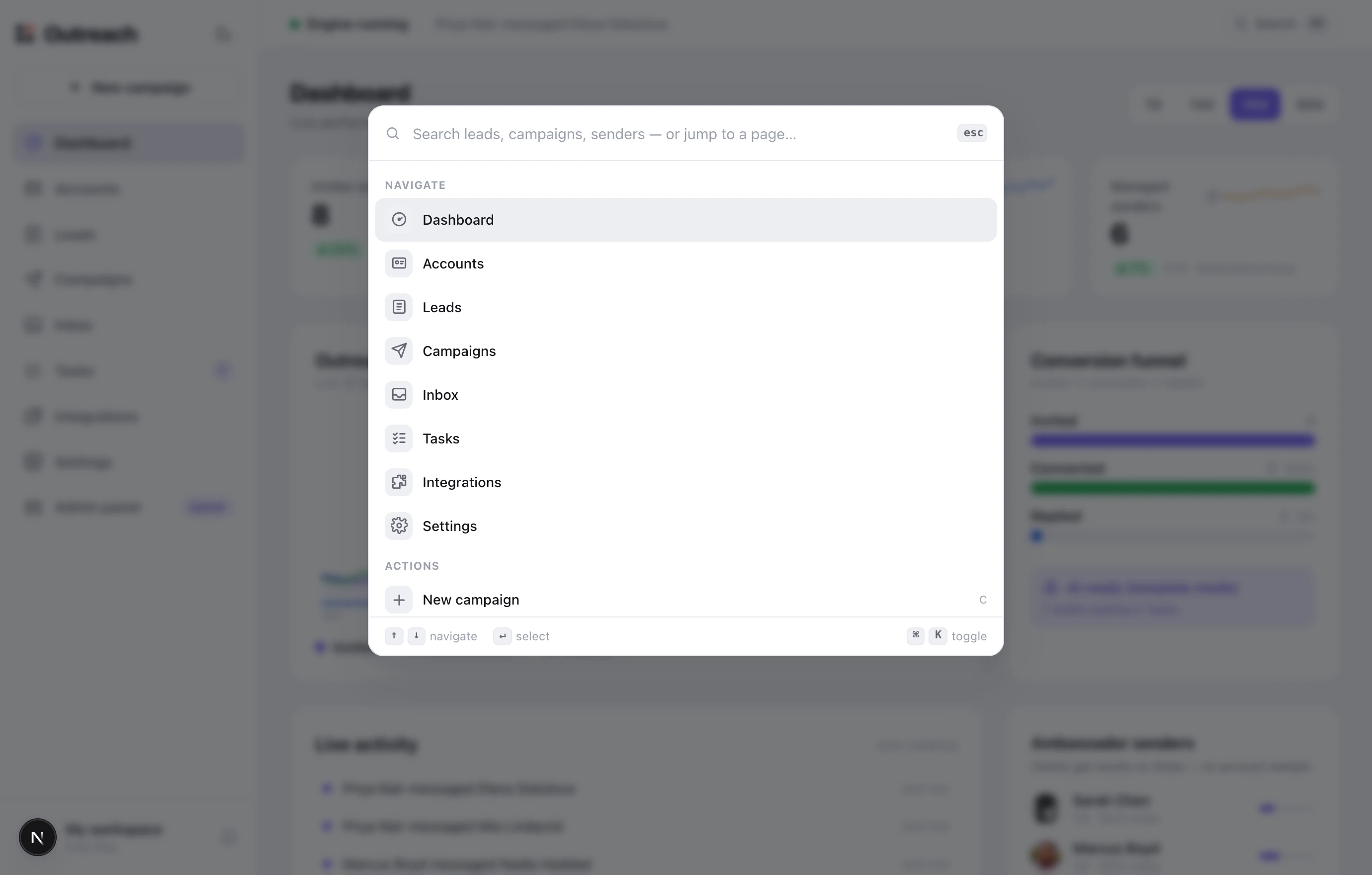
Jump to any screen, campaign, lead or conversation from anywhere — without leaving the page you’re on.
Your workspace, current plan, referrals, log out — and “Clear workspace data”, which deletes this workspace's real campaigns, leads and conversations. It was once labelled “reset demo data”; there is no demo data, and it does not come back.
▸ First run
Getting started in five steps
The Dashboard has a “Getting started” checklist that ticks each step off automatically as you complete it. Work through them in order.
- 1Connect a sender — Accounts
The account your messages go out from. The fastest path is a managed ambassador seat — no login of your own required.
- 2Import your leads — Leads
The people you’ll reach. Import from a LinkedIn search, a CSV, or pasted profile URLs; each import becomes a list.
- 3Build a campaign — Campaigns
The message sequence. Pick a lead list and a sender, then edit the copy for each step.
- 4Connect your tools — Integrations
Optional but recommended: send replies to Slack and sync leads to your CRM so nothing lives only inside TopClozer.
- 5Activate the campaign — Campaigns
A campaign starts working when you set it Active; the top bar then reads “Engine running” with a green dot. The bar reports that state, it does not switch it. From here, watch Tasks and the Unibox each day.
1 Dashboard
Your command center
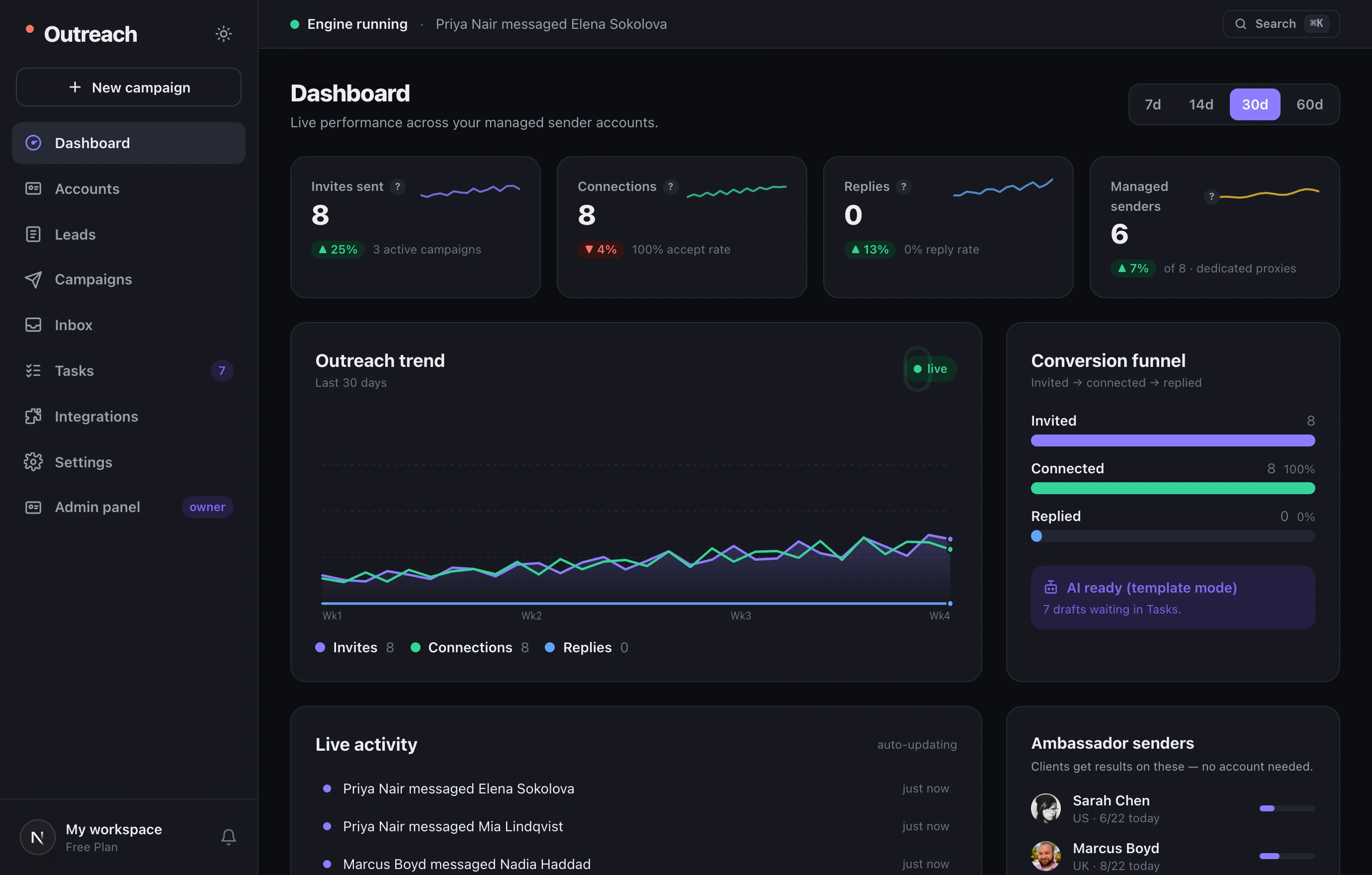
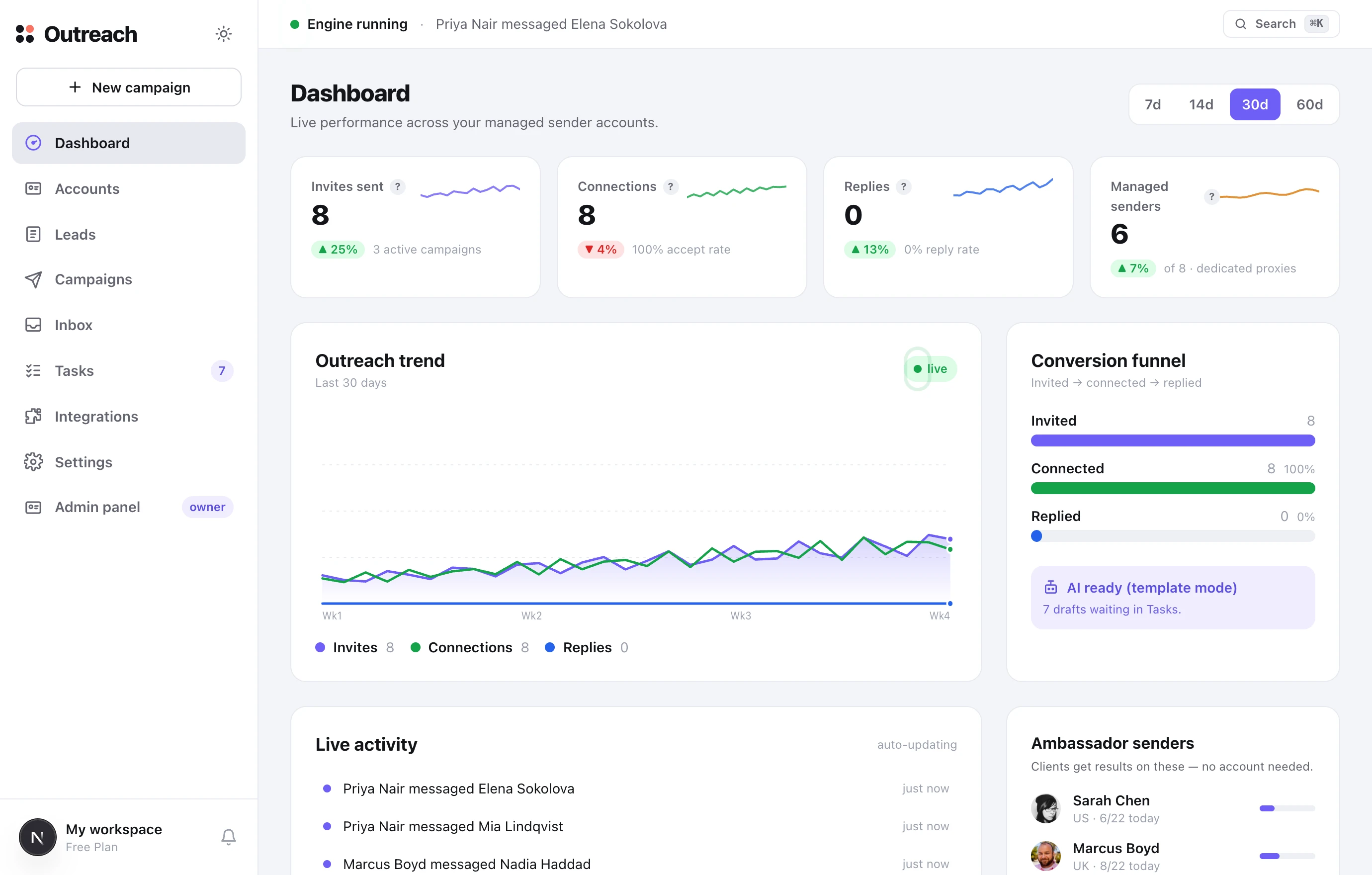
The first screen after you sign in. It shows results across all your sender accounts at once — how much was sent, how many accepted, how many replied — plus a live feed of what’s happening right now.
What it is
A top-down summary: four headline numbers first, then a trend chart and conversion funnel, then a live activity feed and sender status. The 7d / 14d / 30d / 60d switch changes the time range for everything.
How to use it
- 1Check it once a day
Watch that accept rate and reply rate are trending up — they’re the health signals of your outreach.
- 2Hover the “?” icons
Every metric has a tooltip explaining what it means and what range is considered healthy.
- 3Follow drafts to Tasks
The panel under the funnel links straight to Tasks whenever AI has replies waiting for review.
2 Accounts
Who does the sending
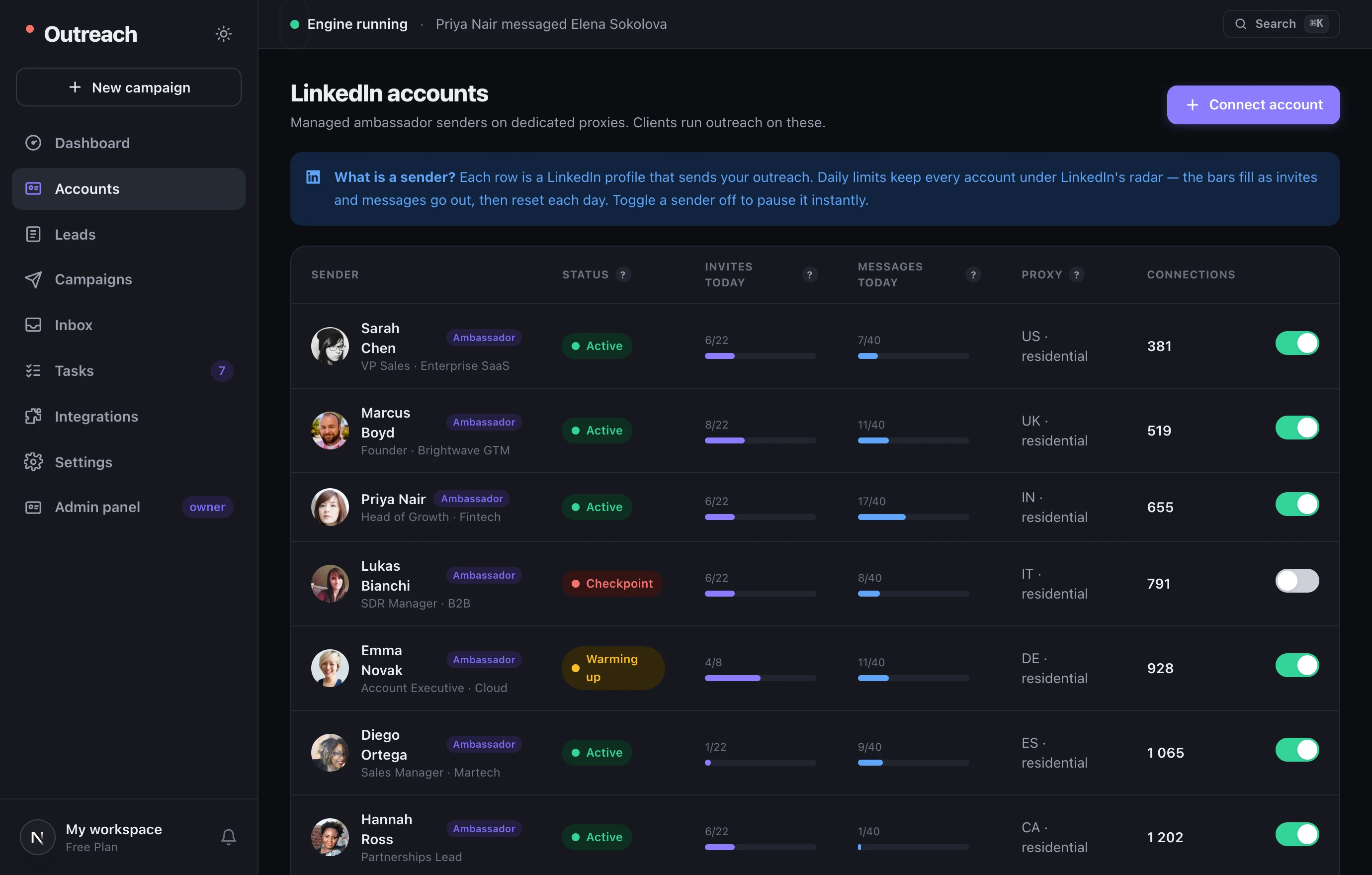
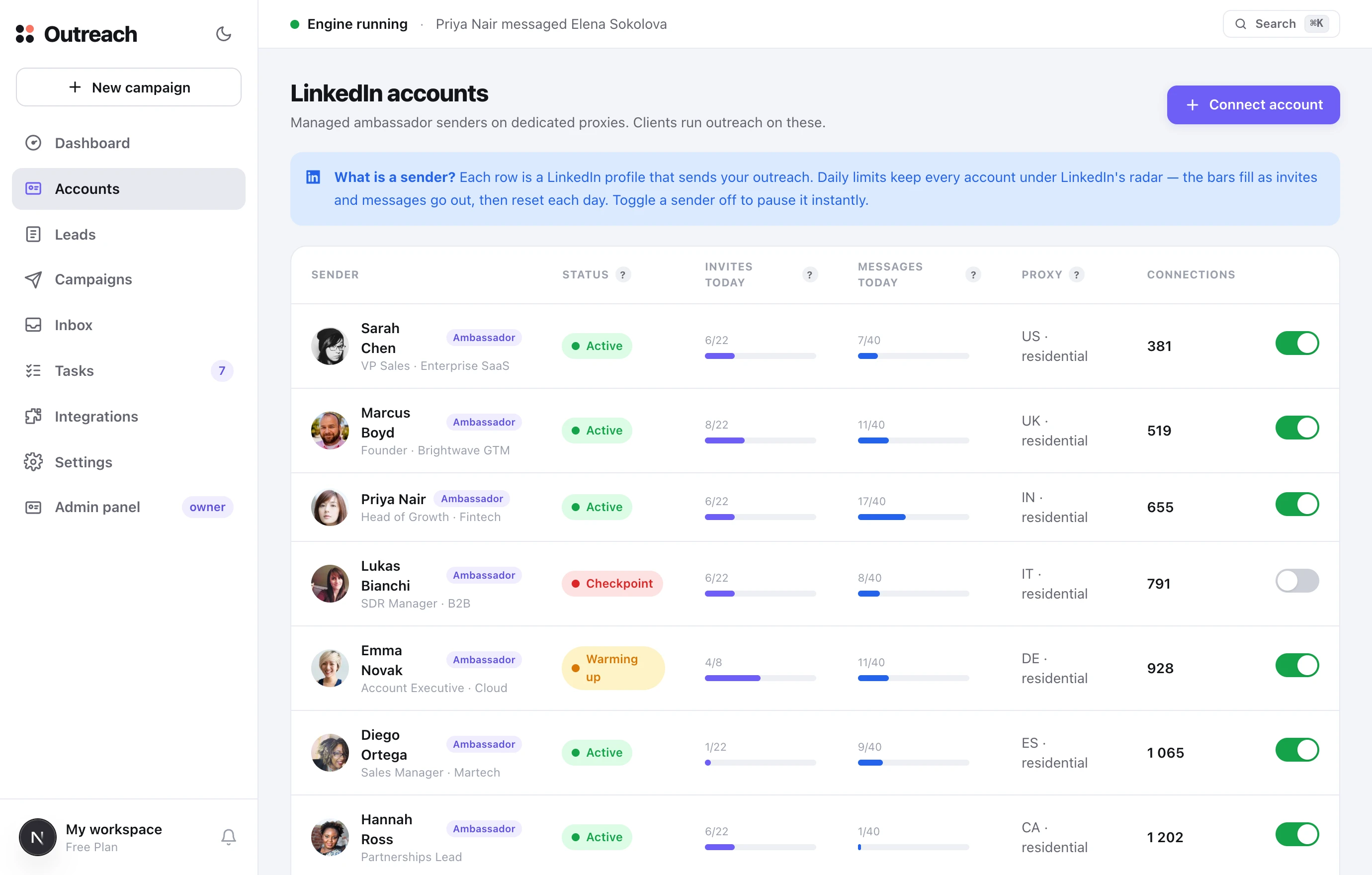
Each row is a LinkedIn profile (a “sender”) that your outreach is sent from. Daily limits keep every account under LinkedIn’s radar, and a toggle pauses any sender instantly.
What it is
Statuses: Active — sending now; Warming — a new account ramping up slowly; Paused — switched off; Checkpoint — LinkedIn asked for verification and it needs attention. The bars show how much has been sent today against each daily cap.
How to use it
- 1Connect account
Choose a managed ambassador seat, or connect your own account via a secure session on a dedicated proxy.
- 2Respect the limits
Don’t push caps to the maximum — a steady, human-like pace protects the account.
- 3Pause with one click
The toggle on the right stops a specific sender immediately, without affecting the others.
3 Leads
Who you’ll reach
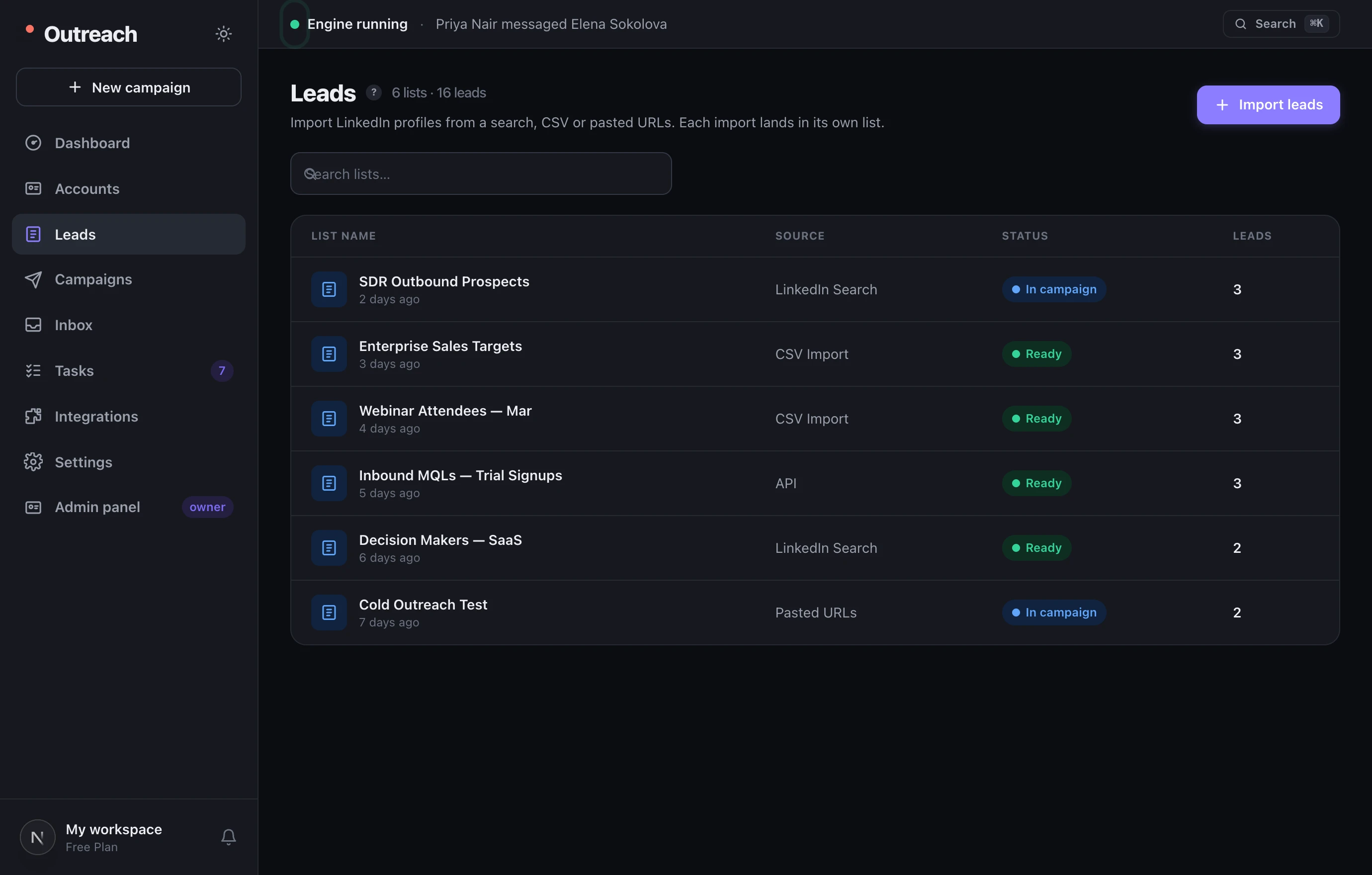
Leads live in lists. Each import — a LinkedIn search, a CSV, or pasted URLs — becomes its own list that you later point a campaign at.
What it is
A list’s status is Ready (usable) or In campaign (already in use). Inside a list, every lead has its own status: not started → invited → connected → replied.
How to use it
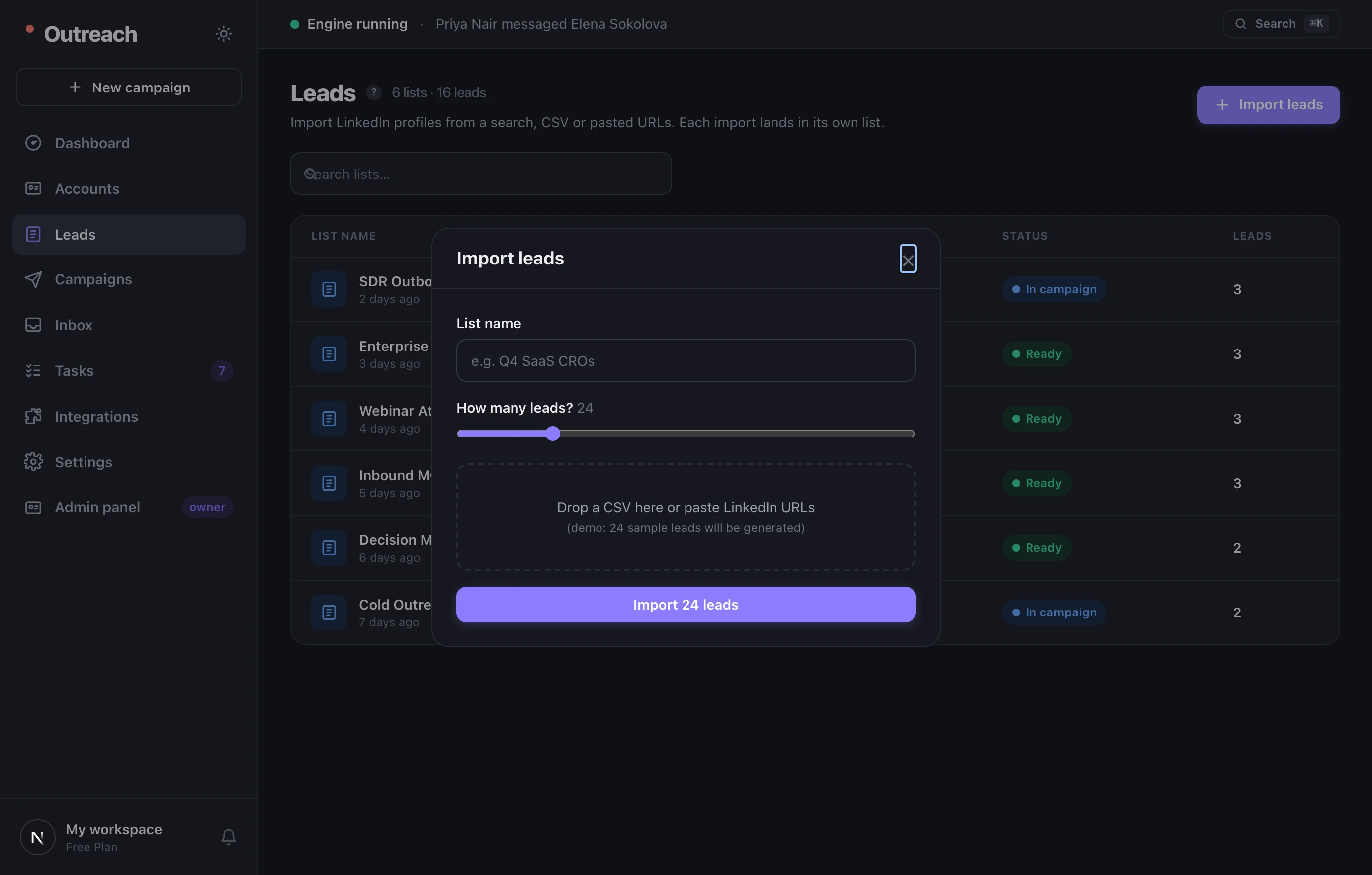
- 1Import leads
Name the list, choose how many leads, then drop a CSV or paste profile URLs.
- 2Keep lists narrow
One segment = one list = one message. Tighter lists let your copy land more precisely.
- 3Review before launch
Open a list, filter by status, and confirm these are the right people before a campaign uses it.
4 Campaigns
What to say, and in what order
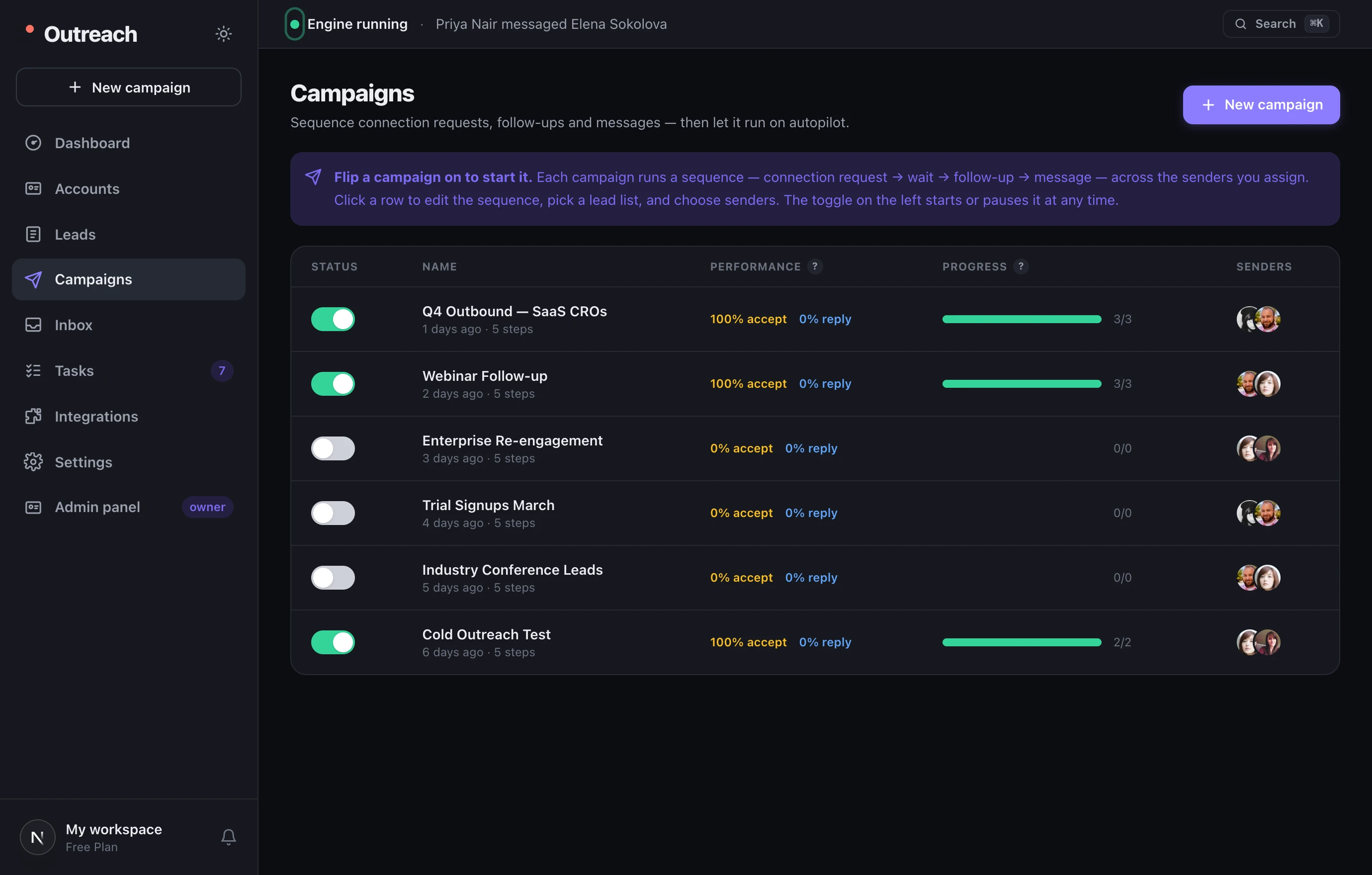
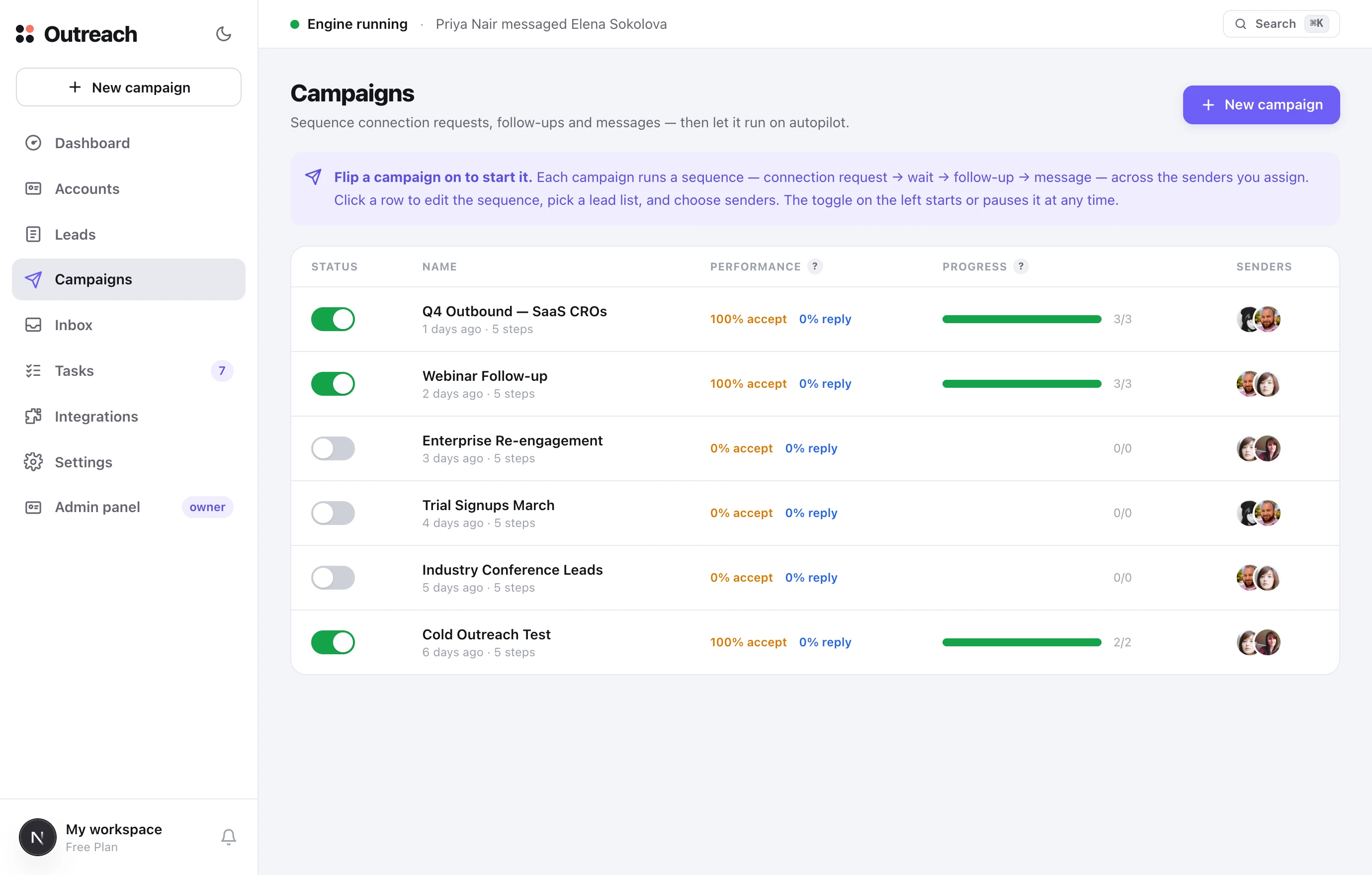
The heart of the system. A campaign is a sequence — connection request → wait → follow-up → message — that runs on autopilot across the senders you assign. The toggle on the left starts and stops it any time.
What it is
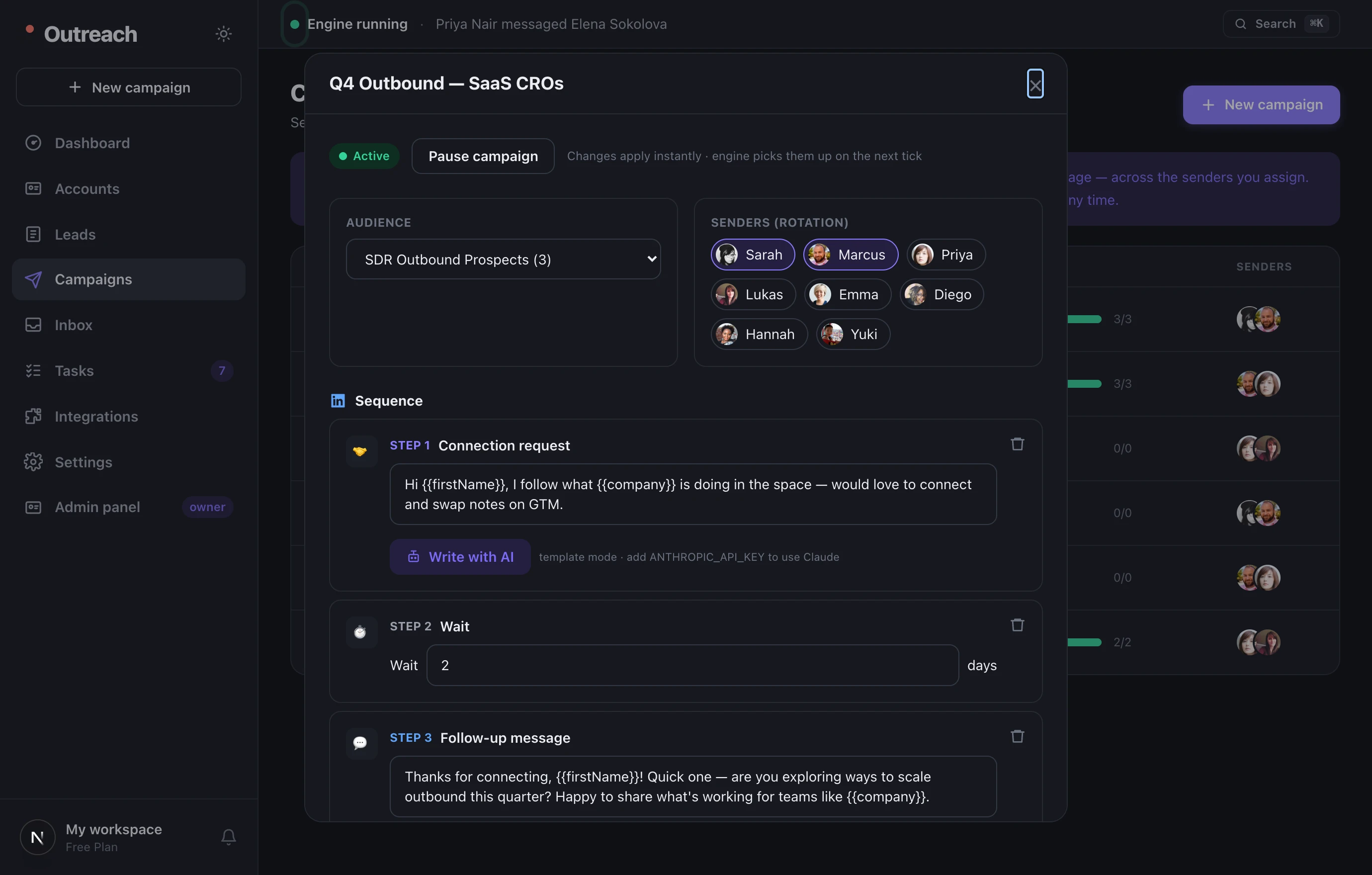
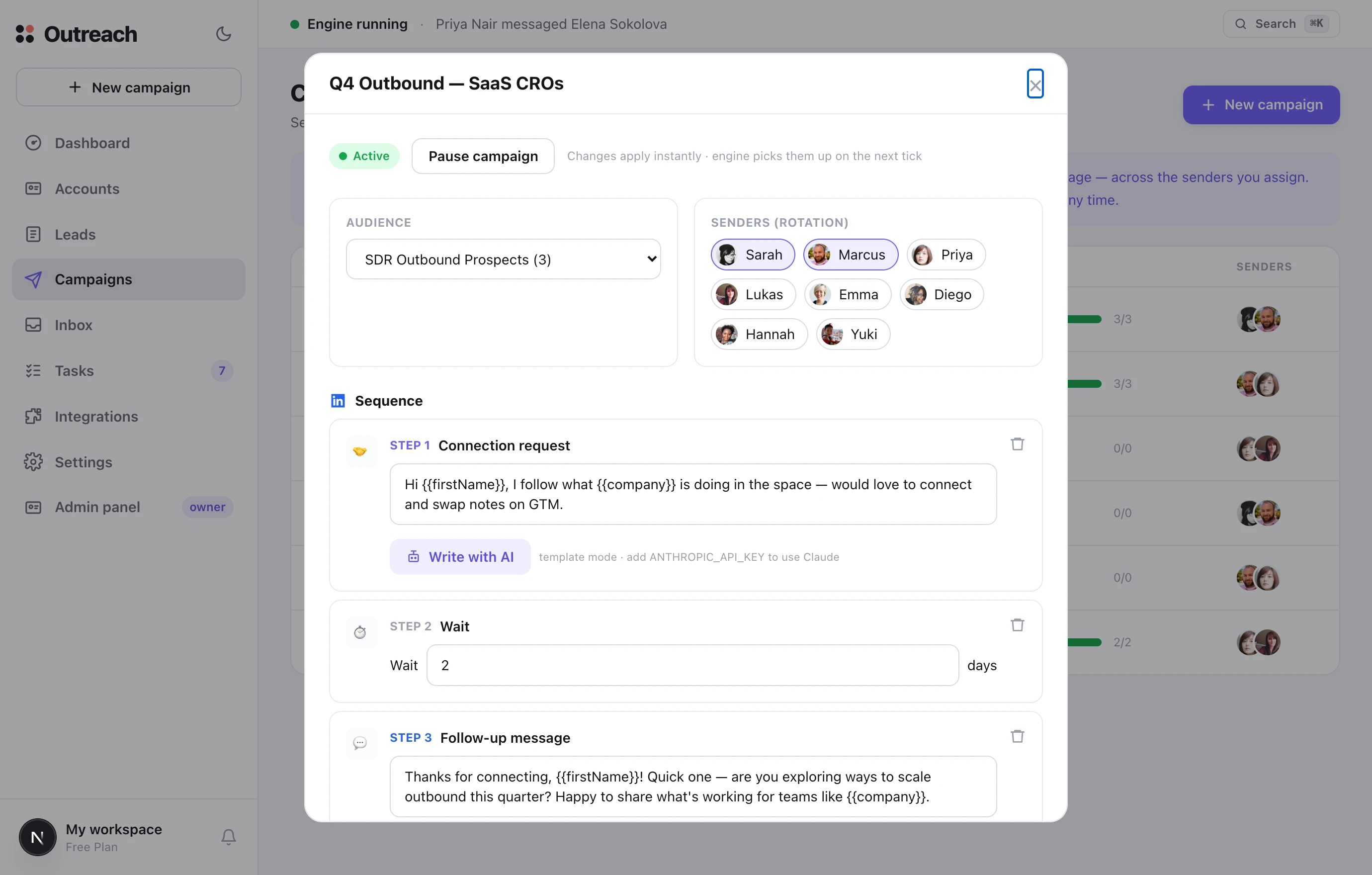
Accept rate is the share of invites that became connections; reply rate is the share of connections who wrote back. Variables like {{firstName}} and {{company}} fill in each lead’s details. A new campaign starts as a draft with a ready-made sequence you can edit.
How to use it
- 1New campaign
Give it a name — it’s created as a draft with a default invite → wait → follow-up sequence.
- 2Assemble it
Open the row to pick a lead list, assign senders, and edit the copy of each step.
- 3Flip it on
The toggle starts the campaign; the same toggle pauses it in a second.
5 Unibox
Every conversation in one place
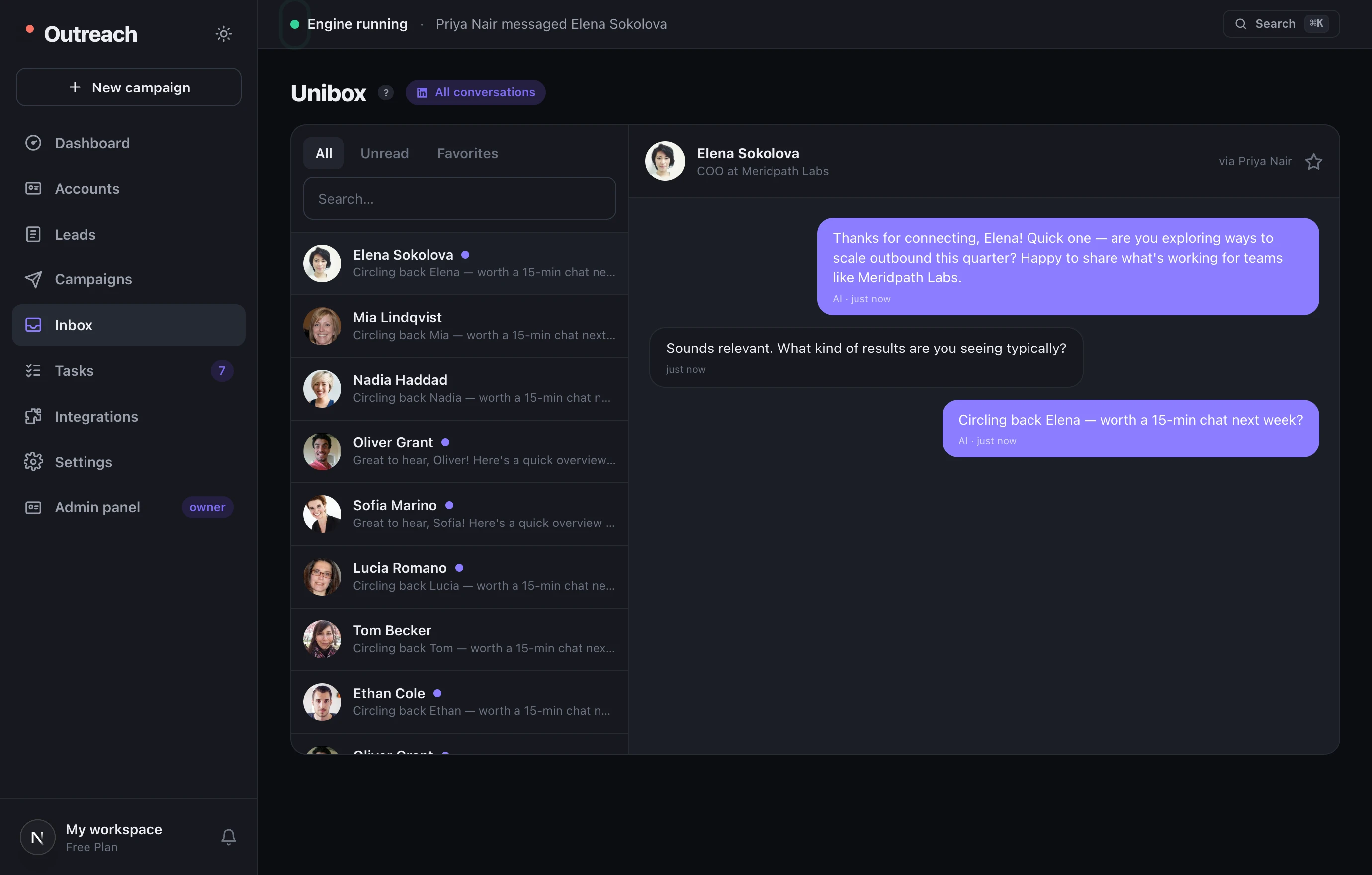
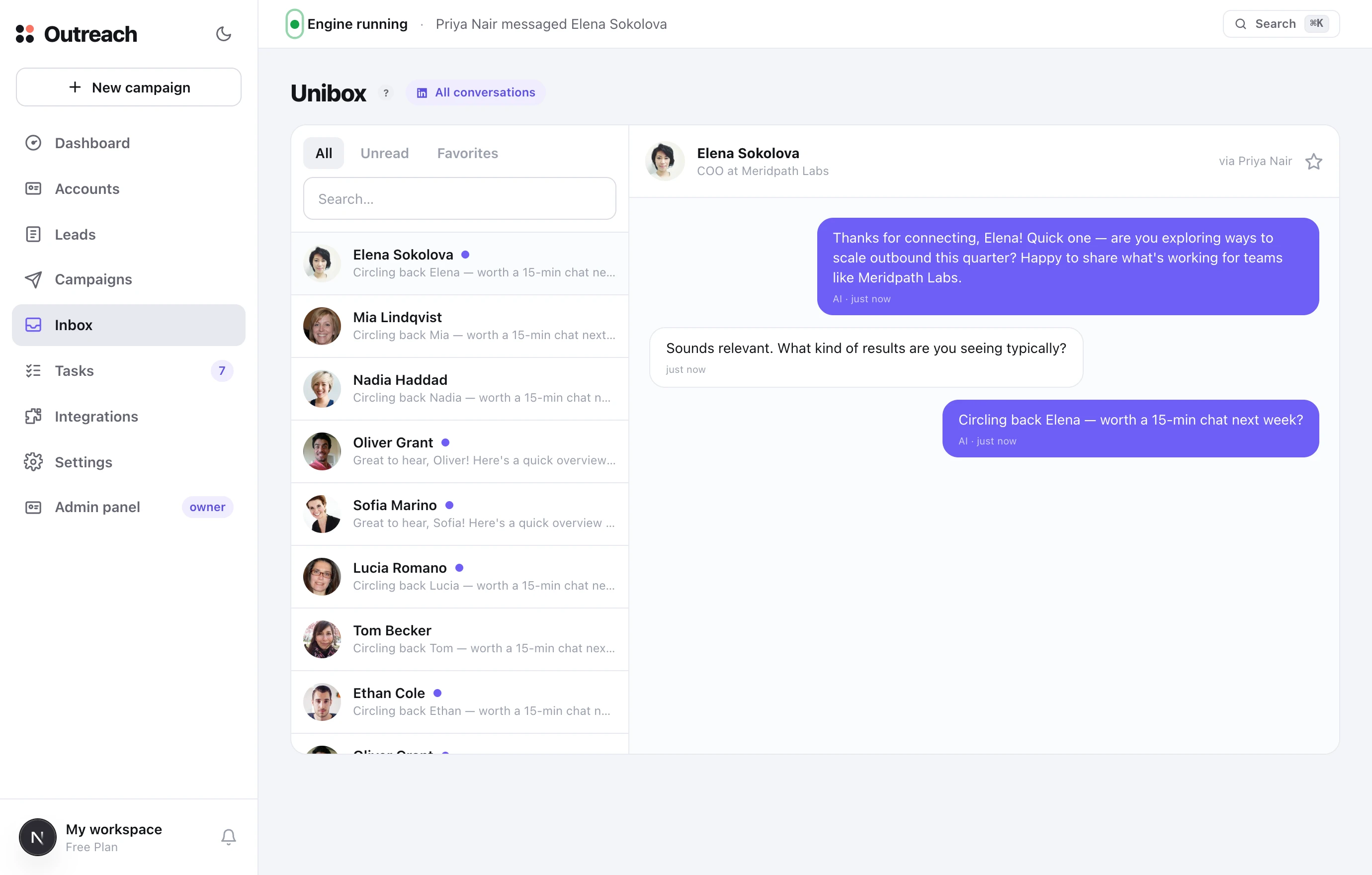
A single inbox for conversations across all your senders. Reply here and the message goes out from the account that owns that thread — you never switch profiles.
What it is
Tabs for All / Unread / Favorites and a search by name. A dot on a conversation means unread. The star marks important threads. The header shows which sender the conversation runs through.
How to use it
- 1Filter to Unread
See at a glance where someone is waiting on a reply.
- 2Reply right here
Type and press Enter — it sends from the correct account automatically.
- 3Star the warm ones
Favorite a promising thread so it’s easy to find later.
6 Tasks
You approve the AI’s replies
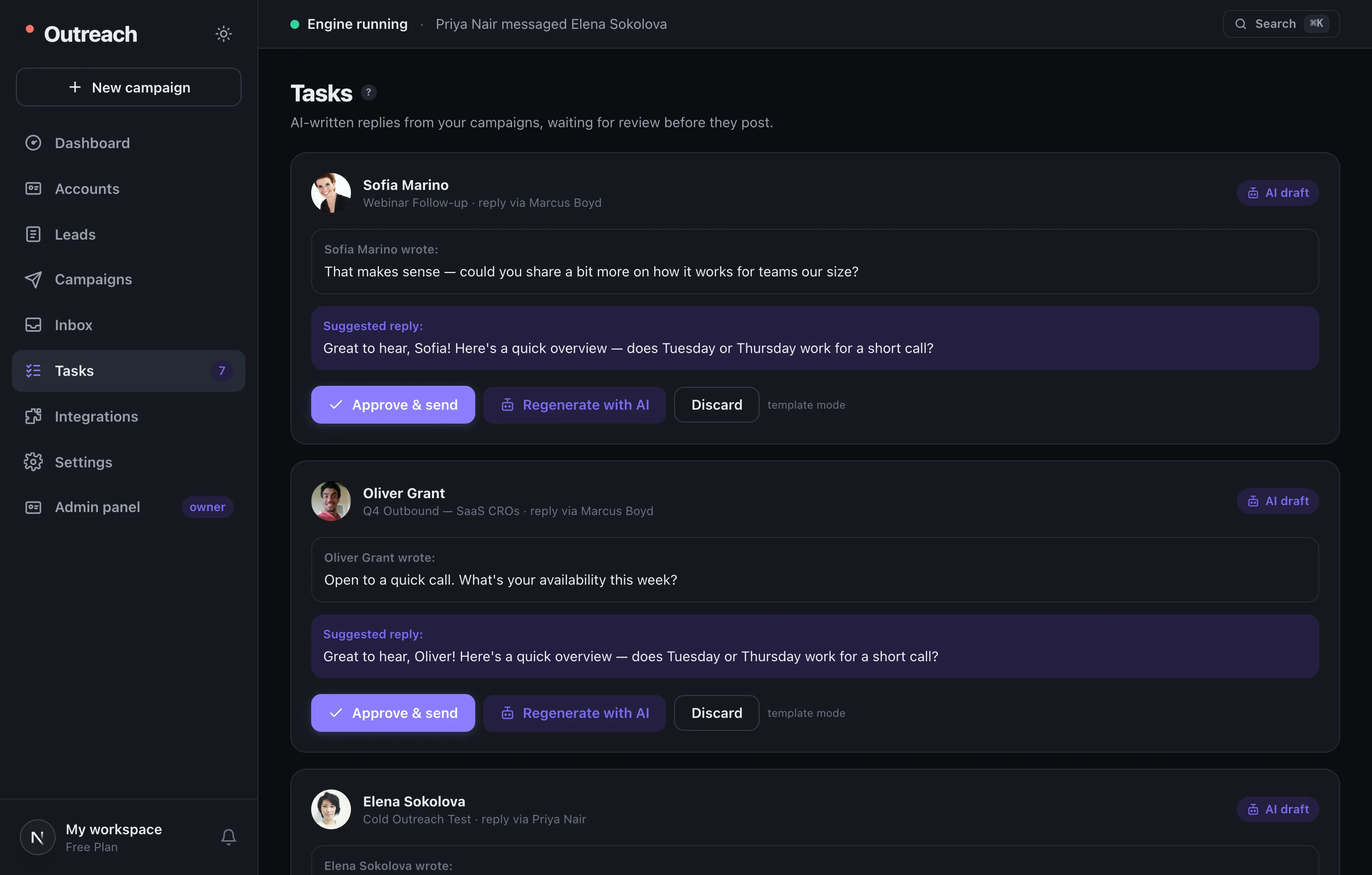
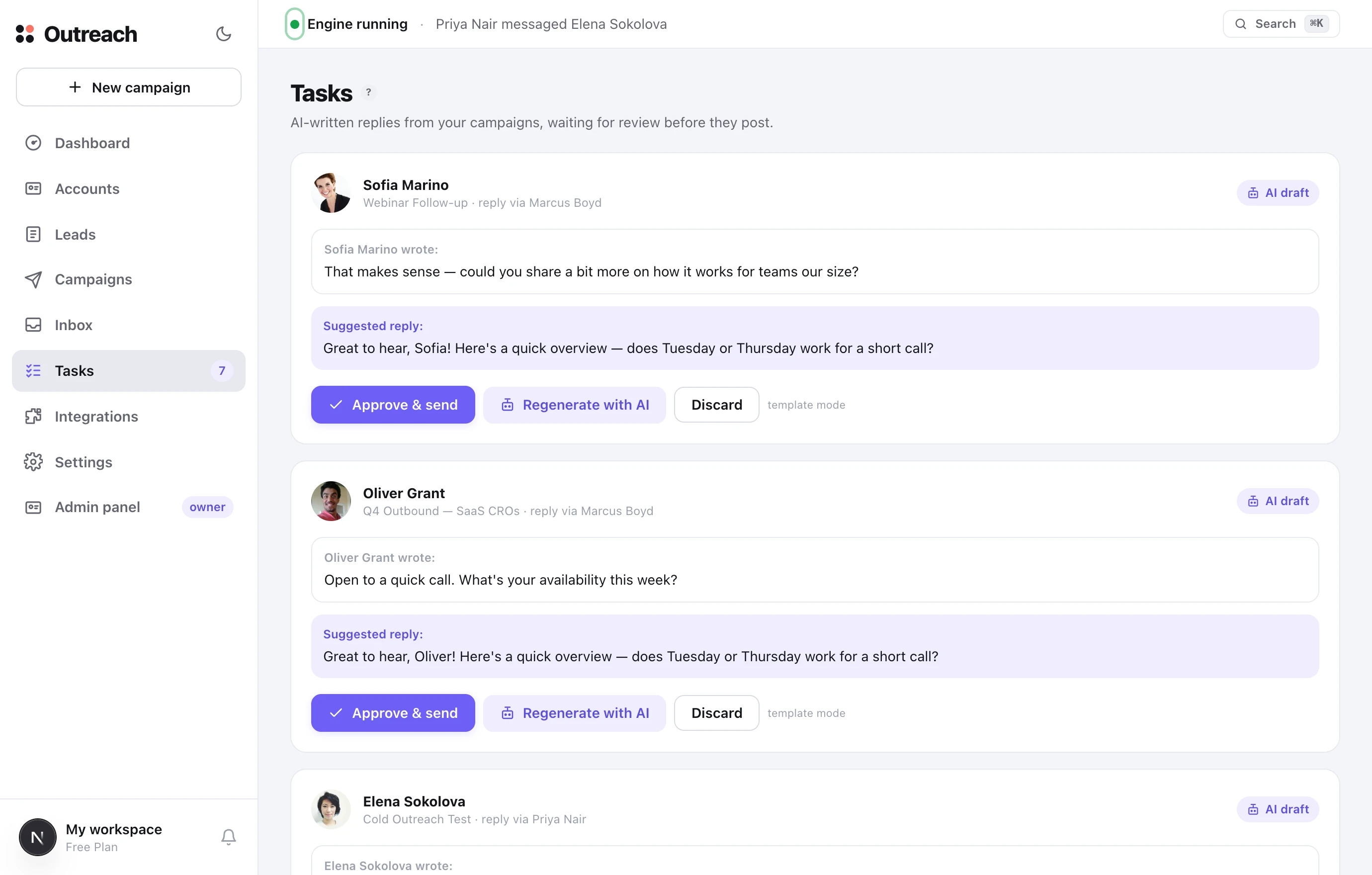
When a lead replies, AI drafts a response and places it here. Nothing is sent automatically — you approve, rewrite, or discard each one. This is your control over quality.
What it is
Each card shows what the lead wrote and what the AI suggests replying. The badge on the “Tasks” menu item is how many replies are waiting. An empty screen means you’re all caught up.
How to use it
- 1Approve & send
The draft is good — send it with one click.
- 2Regenerate
Wrong tone? Have Claude write a fresh version.
- 3Discard
No reply needed — clear the task away.
7 Integrations
Connect everything you need
What this workspace can reach, in three honest states. There is no one-click connect flow for a third-party tool, because there is no integration behind one — the page tells you which of the three a tool is in and what it would take.
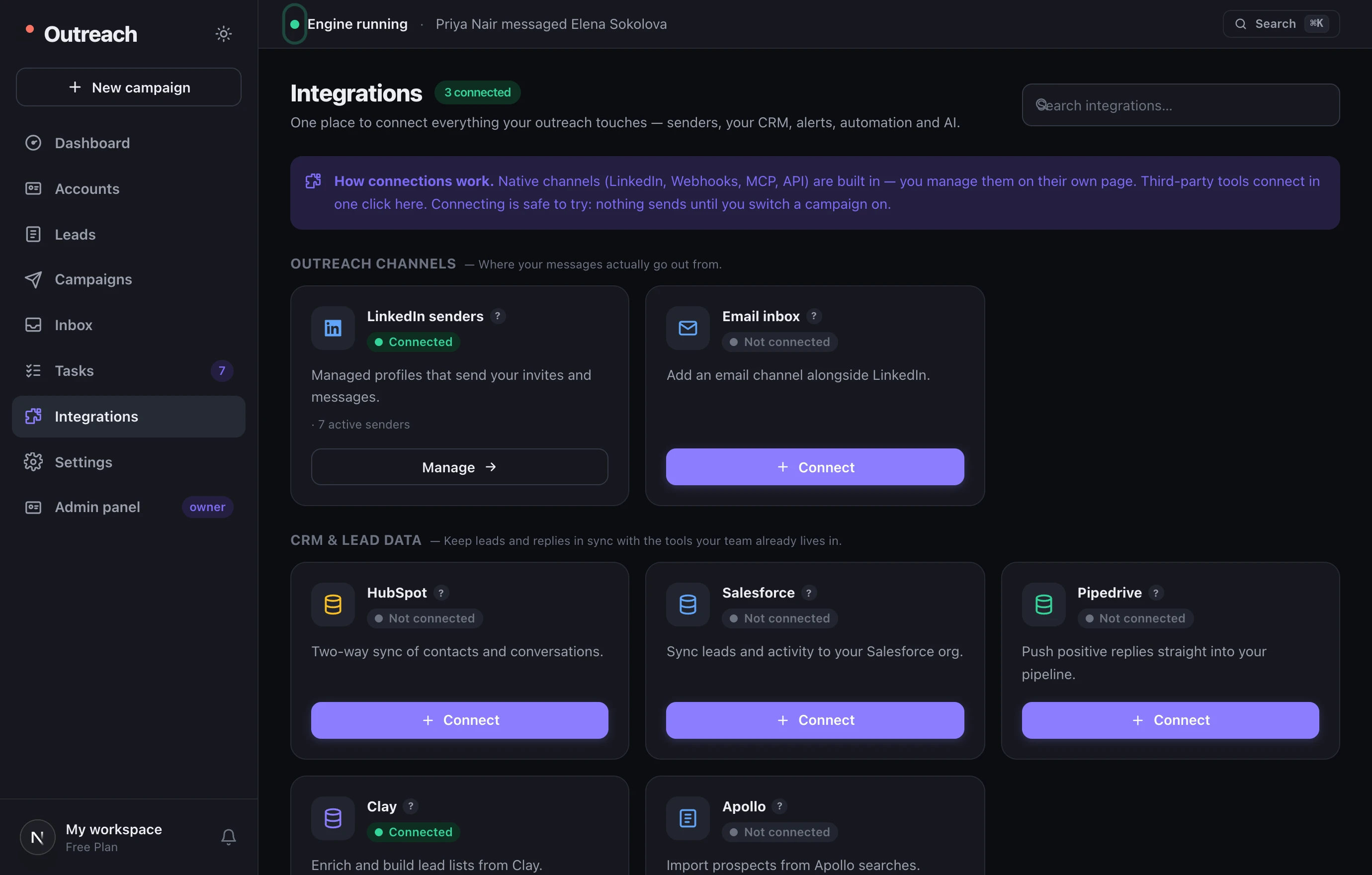
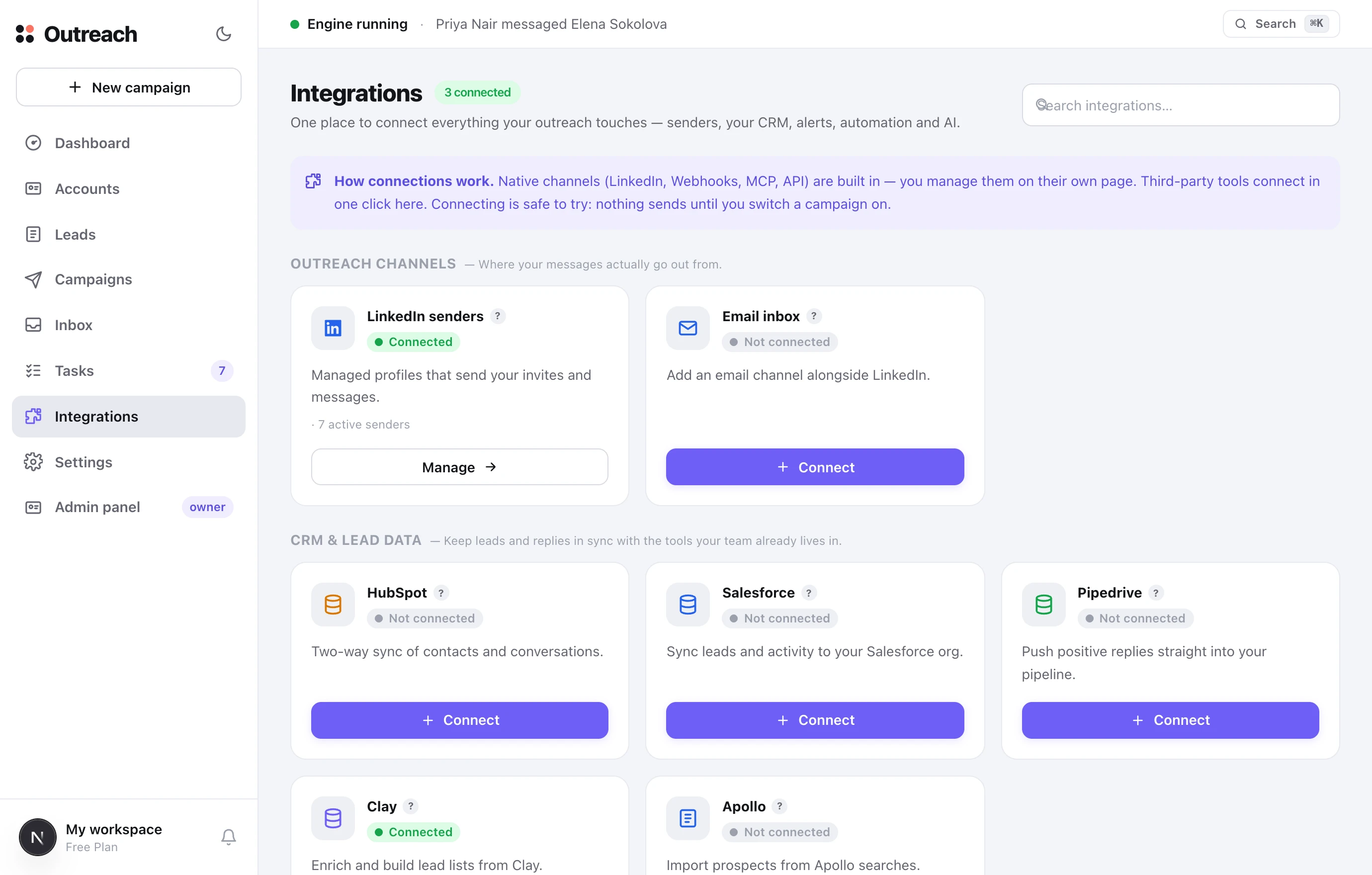
What it is
Built in: LinkedIn, webhooks, the MCP server and the REST API. Their status on the card is read live from this server, not from a saved flag. Wire it yourself: our outgoing webhooks and read API, with the steps on the card — the data moves over a handler or an automation platform on your side, and the HubSpot guide walks one through end to end. Not built: no button at all, and a link to ask for it. Keys and tokens for the services we do reach live on Credentials, where a connection only reads Connected after a live call to the far end came back.
How to use it
- 1Read the state
Built in, wire it yourself, or not built. No card claims more than that.
- 2Wire it yourself
Add a webhook endpoint in Settings and read the workspace over the REST API from your side.
- 3Store a key
For anything we do call ourselves, the secret goes in Credentials — encrypted, and verified before it says Connected.
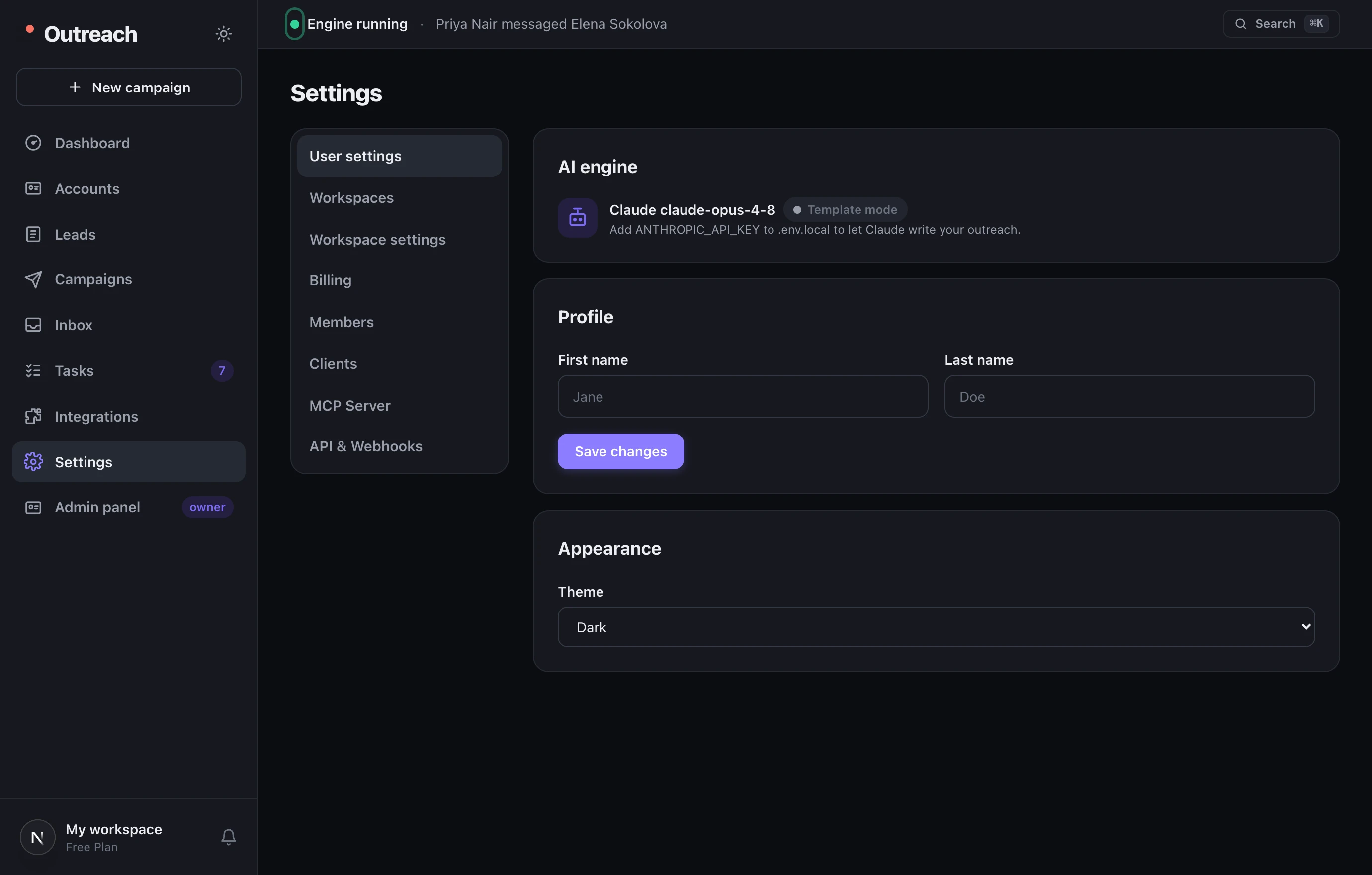
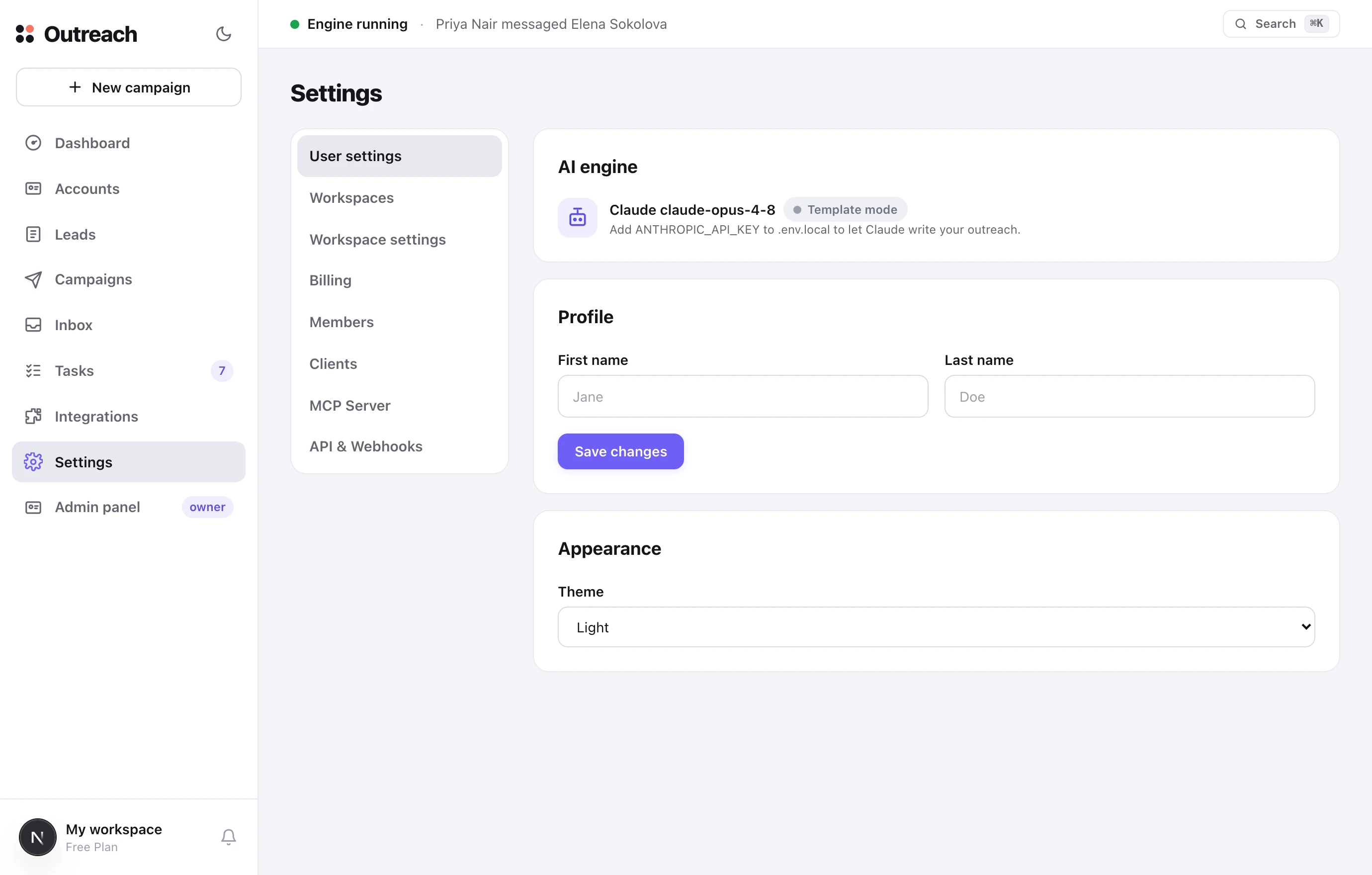
8 Settings
Account, plan, team and developer tools
Everything that governs your workspace, grouped into sections down the left side.
◆ Under the hood
How the AI writes for you
Real AI (Claude) powers the copywriting, but always on your terms — it writes when you ask, and you approve anything sent as a reply.
◆ Best practices
Staying safe & getting replies
TopClozer is built to protect accounts, but a few habits keep deliverability high and results healthy.
★ Speed
Shortcuts & everyday tips
Small things that make daily work faster.
¶ Reference
Glossary of terms
The vocabulary you’ll see across the app, in one place.
? Questions
Frequently asked
Do I have to connect my own LinkedIn account?
Will the platform send anything without me?
My campaign isn’t sending — why?
What are accept rate and reply rate?
How do replies reach my CRM or Slack?
Claude writes the copy — what if there’s no key?
Can I run this for multiple clients?
Still stuck on something? Open the in-app “?” tooltips on any screen, or reach the team from the Contact page.